> ## Documentation Index
> Fetch the complete documentation index at: https://docs.getpara.com/llms.txt
> Use this file to discover all available pages before exploring further.
# Fiat On and Off-Ramps
> Enable crypto purchase and selling flows in your Para Modal implementation
export const Link = ({href, label}) => {
e.currentTarget.querySelector("#underline").style.height = "2px";
}} onMouseLeave={e => {
e.currentTarget.querySelector("#underline").style.height = "1px";
}}>
{label}
;
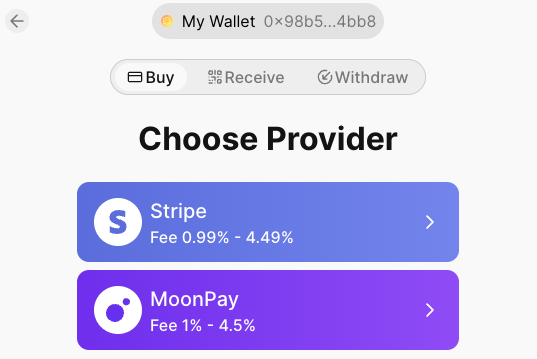
Configure fiat on-ramp (buying crypto) and off-ramp (selling crypto) functionality in your Para Modal implementation
using , , and providers. Enable seamless crypto transactions within your application.
## Setup On-Ramps
### Developer Portal Settings
To start configure your on-ramp and off-ramp settings in the . You can find the configuration settings under **Projects → API Key → Configuration**.
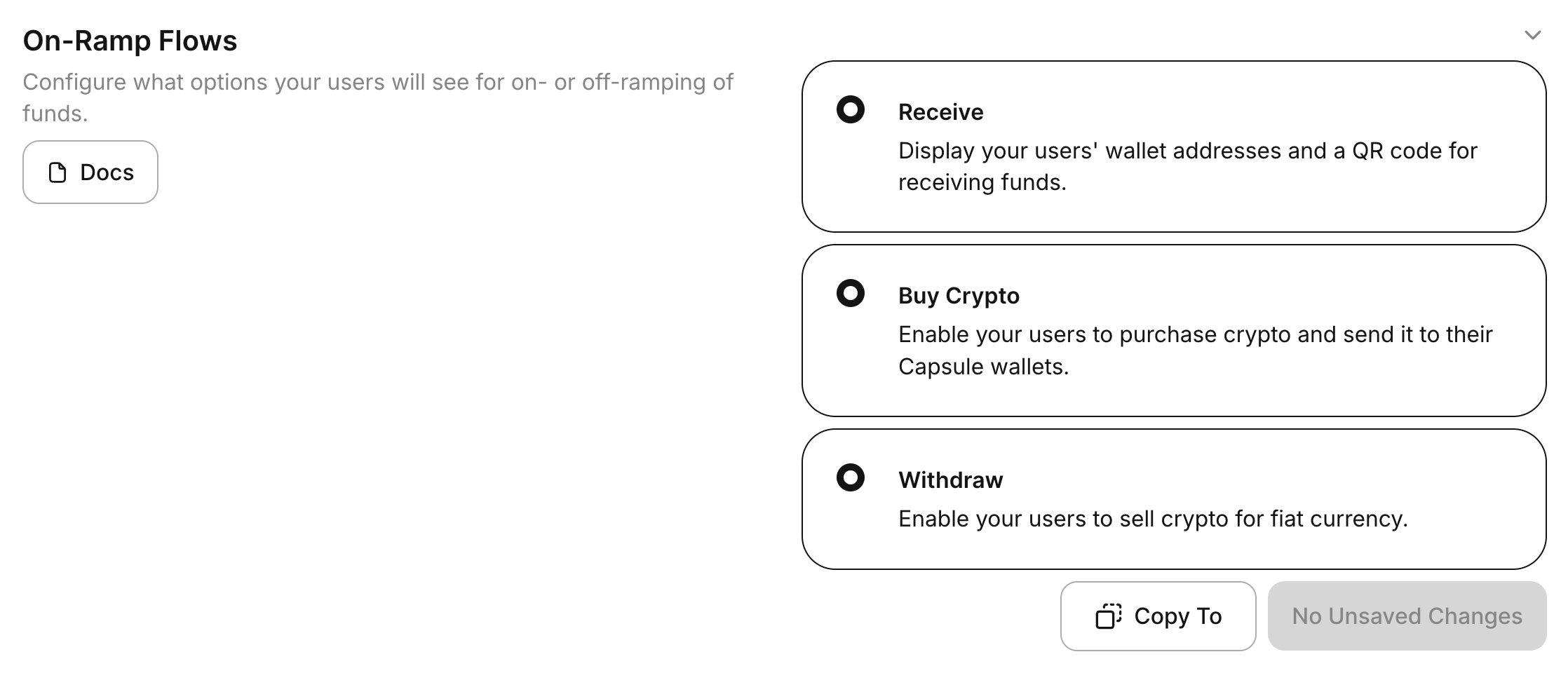
### On-Ramp Flows
Configure what options your users will see for on- or off-ramping of funds.
### On-Ramp Configuration
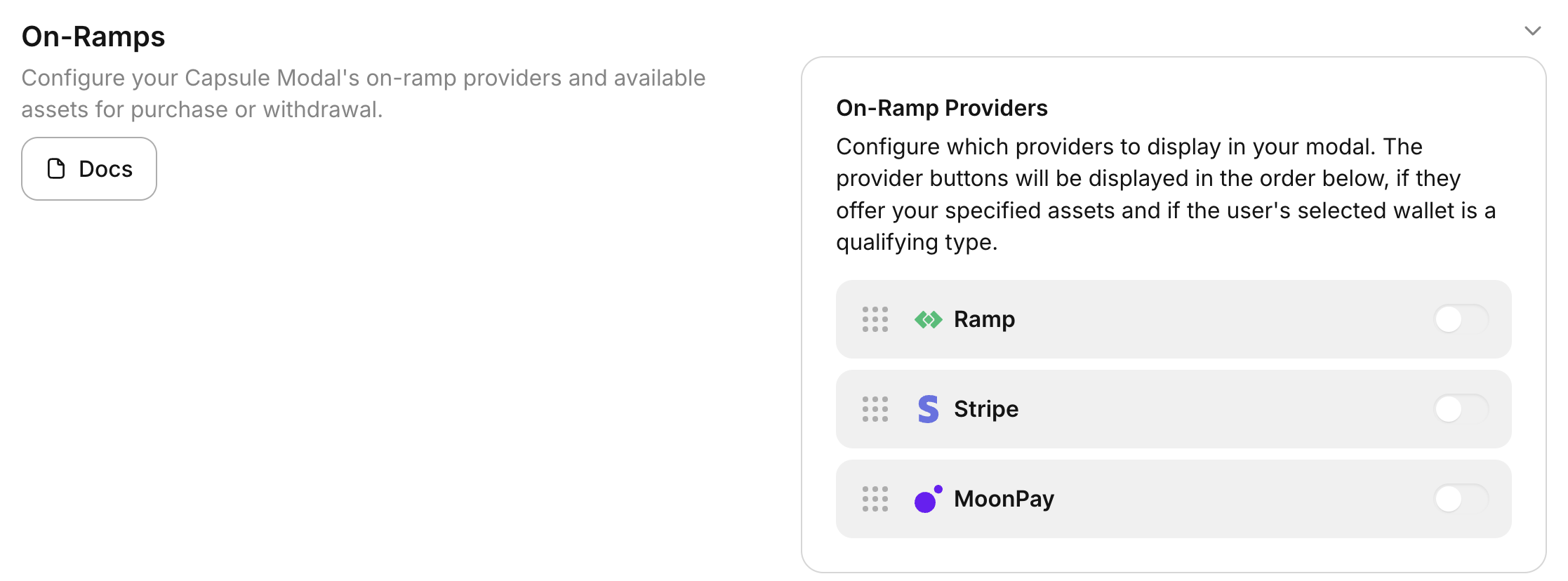
#### On-Ramp Providers
Configure which providers to display in your modal. Providers are displayed in the order set, subject to asset
availability and wallet compatibility.
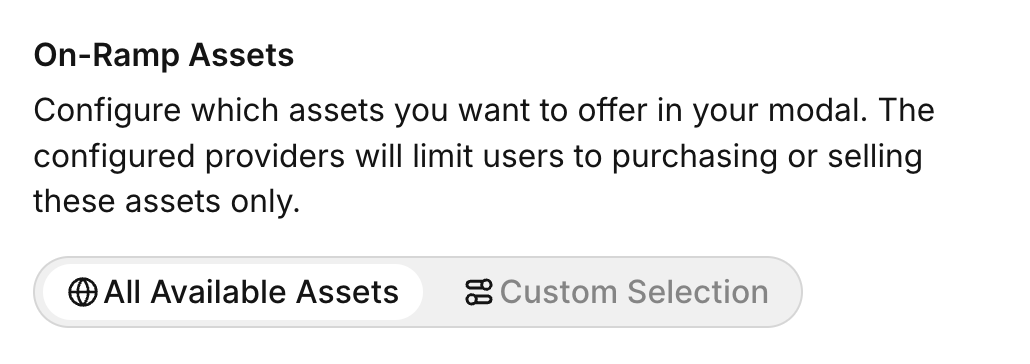
#### On-Ramp Assets
Specify which assets to offer in your modal. Users will be limited to purchasing or selling only the configured assets
through enabled providers.
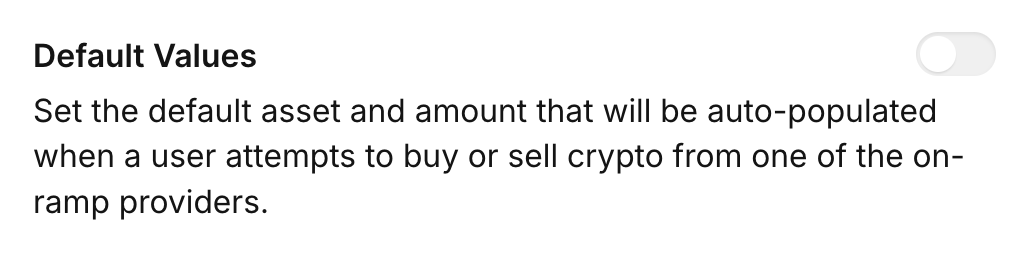
#### Default Values
Set the default asset and amount that will be pre-populated when users initiate crypto purchases or sales.
### Modal Configuration
While in development or beta you can enable test mode for your on-ramp configuration. This will allow you to test the
on-ramp flow without making actual purchases.
```tsx App.tsx theme={null}
function App() {
return ( ); }
```
## Provider Setup
Lastly Ramp and Stripe require additional setup to enable on-ramp and off-ramp functionality.
### Ramp Integration
Obtain a production Ramp API key and configure it in the Para Developer Portal. For detailed instructions, see the
[Ramp API Key Documentation](https://docs.ramp.network/api-keys).
### Stripe Integration
Add the required Stripe scripts to your application's HTML head:
```html index.html theme={null}
Your Application
```
## Additional Resources
For more information, refer to the following resources:
*
*
*
*
 Configure fiat on-ramp (buying crypto) and off-ramp (selling crypto) functionality in your Para Modal implementation
using , , and providers. Enable seamless crypto transactions within your application.
## Setup On-Ramps
### Developer Portal Settings
To start configure your on-ramp and off-ramp settings in the . You can find the configuration settings under **Projects → API Key → Configuration**.
### On-Ramp Flows
Configure what options your users will see for on- or off-ramping of funds.
Configure fiat on-ramp (buying crypto) and off-ramp (selling crypto) functionality in your Para Modal implementation
using , , and providers. Enable seamless crypto transactions within your application.
## Setup On-Ramps
### Developer Portal Settings
To start configure your on-ramp and off-ramp settings in the . You can find the configuration settings under **Projects → API Key → Configuration**.
### On-Ramp Flows
Configure what options your users will see for on- or off-ramping of funds.
 ### On-Ramp Configuration
#### On-Ramp Providers
Configure which providers to display in your modal. Providers are displayed in the order set, subject to asset
availability and wallet compatibility.
### On-Ramp Configuration
#### On-Ramp Providers
Configure which providers to display in your modal. Providers are displayed in the order set, subject to asset
availability and wallet compatibility.
 #### On-Ramp Assets
Specify which assets to offer in your modal. Users will be limited to purchasing or selling only the configured assets
through enabled providers.
#### On-Ramp Assets
Specify which assets to offer in your modal. Users will be limited to purchasing or selling only the configured assets
through enabled providers.
 #### Default Values
Set the default asset and amount that will be pre-populated when users initiate crypto purchases or sales.
#### Default Values
Set the default asset and amount that will be pre-populated when users initiate crypto purchases or sales.
 ### Modal Configuration
While in development or beta you can enable test mode for your on-ramp configuration. This will allow you to test the
on-ramp flow without making actual purchases.
### Modal Configuration
While in development or beta you can enable test mode for your on-ramp configuration. This will allow you to test the
on-ramp flow without making actual purchases.