> ## Documentation Index
> Fetch the complete documentation index at: https://docs.getpara.com/llms.txt
> Use this file to discover all available pages before exploring further.
# Set up Custom OIDC
> Add your own OpenID Connect provider as a Para login method — configure it from the Developer Portal or the Para CLI.
Custom OIDC lets you add **your own OpenID Connect (OIDC) identity provider** — an enterprise SSO, your existing auth system, or any standards-compliant IdP — as a login method in Para. Users sign in with your provider and get a Para embedded wallet, just like any other social login.
In this flow **Para is the OIDC client (relying party)** and your provider is the identity provider. You configure it once on your partner record — from the [Developer Portal](https://developer.getpara.com) or the [Para CLI](/v3/cli/overview) — and it works everywhere your app authenticates: the Para Modal renders it automatically, and your own custom UI can trigger it like any OAuth method.
Custom OIDC is for **end users signing in through Para** with your IdP. If your backend already authenticates users and you only need server-side wallets, see [Bring Your Own Auth](/v3/rest/byo-auth) instead — a different pattern.
## How it works
1. A user selects your provider on the Para login screen.
2. Para redirects them to your IdP to sign in.
3. Your IdP redirects back to Para's callback with an authorization code.
4. Para exchanges the code, verifies the identity, and creates or loads the user's Para wallet.
You give Para a **client ID** and **client secret** from your IdP; Para gives you a **redirect URI** to register with your IdP. That's the whole handshake.
## Before you start
* An OpenID Connect provider that supports OIDC Discovery (it serves a `/.well-known/openid-configuration` document).
* Admin access to register a new client with that provider.
* A Para project and API key — [create one](/v3/general/developer-portal-setup) if you haven't.
## 1. Register Para with your provider
In your identity provider, register a new OIDC client (sometimes called an "application" or "relying party") and note its **Client ID** and **Client secret**.
Add Para's redirect URI to the client's list of allowed redirect URIs:
```text Production theme={null}
https://api.getpara.com/auth/custom_oidc/callback
```
```text Beta (testing) theme={null}
https://api.beta.getpara.com/auth/custom_oidc/callback
```
Para uses one redirect URI per environment — your project context is carried in the OAuth `state` parameter. The exact URI is also shown when you configure Custom OIDC in the next step.
## 2. Configure Custom OIDC in Para
Configure the provider on your partner record from either the Developer Portal or the Para CLI — they write the same settings.
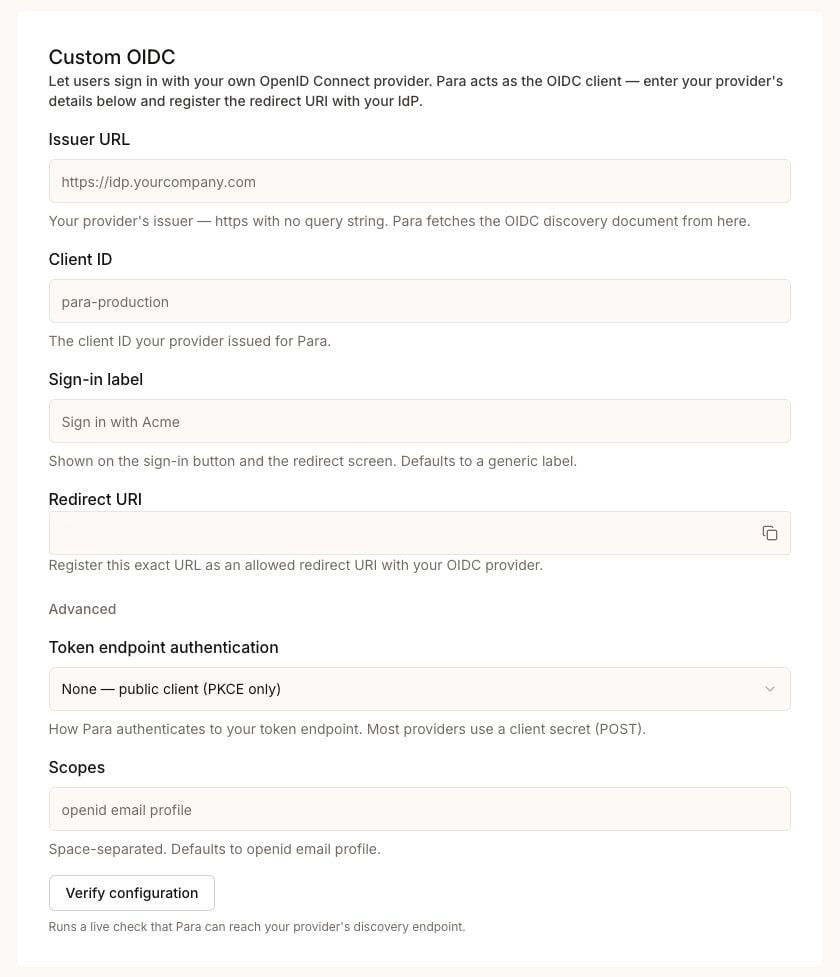 In the [Developer Portal](https://developer.getpara.com), select your project and API key, then go to **Authentication** and find the **Custom OIDC** section.
* **Issuer URL** — your provider's issuer, e.g. `https://idp.yourcompany.com`. Must be `https` with no query string.
* **Client ID** — the client ID from step 1.
* **Scopes** — space-separated (defaults to `openid email profile`).
* **Token endpoint authentication** — how Para authenticates to your token endpoint (see [authentication methods](#token-endpoint-authentication-methods)).
* **Sign-in label** — the text shown on the login button, e.g. "Sign in with Acme".
Enter the **Client secret** from step 1 and save it. It's stored encrypted and never shown again. (Skip this if your client uses the `none` authentication method.)
Copy the **Redirect URI** shown in the card and add it to your provider's allowed redirect URIs (if you didn't in step 1).
Click **Verify** — Para runs a live check against your provider's discovery document and confirms it can reach it.
In the **Embedded Wallets** method list, enable **Custom OIDC** so it appears as a login option.
Configure the same settings with the [Para CLI](/v3/cli/overview):
```bash theme={null}
# Set the provider config
para keys config oidc set \
--issuer https://idp.yourcompany.com \
--client-id your-client-id \
--scopes "openid email profile" \
--auth-method client_secret_post \
--label "Sign in with Acme"
# → Updated Custom OIDC on My App (production)
# Store the client secret (prompted; the value is never echoed or written to .pararc)
para keys config oidc set-secret
# → Stored the Custom OIDC client secret on My App (production).
# Confirm Para can reach your provider
para keys config oidc verify
# → Custom OIDC provider verified on My App (production).
# Enable Custom OIDC as a login method
para keys config auth --oauth-methods CUSTOM_OIDC
```
Review the saved configuration at any time with `show`:
```bash theme={null}
$ para keys config oidc show
Issuer https://idp.yourcompany.com
Client ID your-client-id
Scopes openid email profile
Auth method client_secret_post
Sign-in label Sign in with Acme
Client secret set
```
`--oauth-methods` sets the full OAuth list, so include any other providers you want enabled alongside `CUSTOM_OIDC`.
## 3. Use it in your app
Once Custom OIDC is enabled, no extra SDK code is required to make it appear.
### With the Para Modal
The Para Modal renders a **Custom OIDC** button automatically, labeled with your sign-in label. Users tap it, sign in with your provider, and land back in your app with a Para wallet.
### With your own UI
If you build your own login UI, trigger Custom OIDC like any other OAuth provider — pass `"CUSTOM_OIDC"` as the method:
```typescript theme={null}
const result = await para.authenticateWithOAuth({
method: "CUSTOM_OIDC",
redirectCallbacks: {
onOAuthPopup: (popup) => {
// keep a handle to the popup if you want to track it
},
},
});
```
See [Build a Custom UI](/v3/react/guides/custom-ui-web-sdk#oauth-authentication) for the full OAuth flow. To label your own button consistently, read the configured value from `para.config.authConfig?.oidcConfig?.buttonLabel`.
Custom OIDC works the same on every platform — it's a `CUSTOM_OIDC` OAuth method wherever Para authenticates. On mobile, follow your platform's social-login guide and pass `CUSTOM_OIDC` as the method.
## Token endpoint authentication methods
**Token endpoint authentication** controls how Para authenticates to your provider's token endpoint when it exchanges the authorization code:
| Method | Behavior |
| --------------------- | ----------------------------------------------------------------------------------- |
| `client_secret_post` | **Default.** Para sends the client ID and secret in the request body. |
| `client_secret_basic` | Para sends the client ID and secret as an HTTP Basic auth header. |
| `none` | Public client — no secret. Use only if your provider issued a public (PKCE) client. |
Choose the method your provider expects for the client you registered. `client_secret_post` and `client_secret_basic` require a client secret; `none` requires none.
## Security
* Your **client secret is write-only.** Para stores it with KMS envelope encryption and never returns it. The CLI prompts for it without echoing, and it's never written to `.pararc`.
* The **issuer must be `https` with no query string** — this keeps credentials out of the stored issuer and any logs. A path is fine (`https://idp.yourcompany.com/tenant-123`).
* Para validates your provider's discovery document over the network when it connects; private and internal addresses are rejected.
## Troubleshooting
The redirect URI registered with your provider must exactly match Para's callback for the environment you're using — `https://api.getpara.com/auth/custom_oidc/callback` (production) or `https://api.beta.getpara.com/auth/custom_oidc/callback` (beta). Re-copy it from the Custom OIDC configuration.
Your **token endpoint authentication** method must match what your provider expects. If your client is confidential, use `client_secret_post` or `client_secret_basic` and make sure a secret is set. If it's a public client, use `none`.
The issuer must be `https` with no query string, fragment, or credentials — just `https://host/path`. Para fetches your discovery document from `{issuer}/.well-known/openid-configuration`.
Para couldn't load your discovery document. Confirm the issuer is publicly reachable over HTTPS and serves a valid `/.well-known/openid-configuration`.
## Custom OIDC vs Bring Your Own Auth
Both let you use your own identity system, but they're different integrations:
| | Custom OIDC | [Bring Your Own Auth](/v3/rest/byo-auth) |
| -------------------------- | ----------------------------------------------- | ----------------------------------------------------------- |
| Who authenticates the user | Your OIDC provider, through the Para login flow | Your backend, before it calls Para |
| Where it runs | Client — the Para Modal or your own UI | Server-to-server, over the REST API |
| Use when | You want a login button for your IdP or SSO | You already authenticate users and want server-side wallets |
## Next steps
The full Authentication screen — login methods, layout, and more.
Authenticate without the Para Modal.
In the [Developer Portal](https://developer.getpara.com), select your project and API key, then go to **Authentication** and find the **Custom OIDC** section.
* **Issuer URL** — your provider's issuer, e.g. `https://idp.yourcompany.com`. Must be `https` with no query string.
* **Client ID** — the client ID from step 1.
* **Scopes** — space-separated (defaults to `openid email profile`).
* **Token endpoint authentication** — how Para authenticates to your token endpoint (see [authentication methods](#token-endpoint-authentication-methods)).
* **Sign-in label** — the text shown on the login button, e.g. "Sign in with Acme".
Enter the **Client secret** from step 1 and save it. It's stored encrypted and never shown again. (Skip this if your client uses the `none` authentication method.)
Copy the **Redirect URI** shown in the card and add it to your provider's allowed redirect URIs (if you didn't in step 1).
Click **Verify** — Para runs a live check against your provider's discovery document and confirms it can reach it.
In the **Embedded Wallets** method list, enable **Custom OIDC** so it appears as a login option.
Configure the same settings with the [Para CLI](/v3/cli/overview):
```bash theme={null}
# Set the provider config
para keys config oidc set \
--issuer https://idp.yourcompany.com \
--client-id your-client-id \
--scopes "openid email profile" \
--auth-method client_secret_post \
--label "Sign in with Acme"
# → Updated Custom OIDC on My App (production)
# Store the client secret (prompted; the value is never echoed or written to .pararc)
para keys config oidc set-secret
# → Stored the Custom OIDC client secret on My App (production).
# Confirm Para can reach your provider
para keys config oidc verify
# → Custom OIDC provider verified on My App (production).
# Enable Custom OIDC as a login method
para keys config auth --oauth-methods CUSTOM_OIDC
```
Review the saved configuration at any time with `show`:
```bash theme={null}
$ para keys config oidc show
Issuer https://idp.yourcompany.com
Client ID your-client-id
Scopes openid email profile
Auth method client_secret_post
Sign-in label Sign in with Acme
Client secret set
```
`--oauth-methods` sets the full OAuth list, so include any other providers you want enabled alongside `CUSTOM_OIDC`.
## 3. Use it in your app
Once Custom OIDC is enabled, no extra SDK code is required to make it appear.
### With the Para Modal
The Para Modal renders a **Custom OIDC** button automatically, labeled with your sign-in label. Users tap it, sign in with your provider, and land back in your app with a Para wallet.
### With your own UI
If you build your own login UI, trigger Custom OIDC like any other OAuth provider — pass `"CUSTOM_OIDC"` as the method:
```typescript theme={null}
const result = await para.authenticateWithOAuth({
method: "CUSTOM_OIDC",
redirectCallbacks: {
onOAuthPopup: (popup) => {
// keep a handle to the popup if you want to track it
},
},
});
```
See [Build a Custom UI](/v3/react/guides/custom-ui-web-sdk#oauth-authentication) for the full OAuth flow. To label your own button consistently, read the configured value from `para.config.authConfig?.oidcConfig?.buttonLabel`.
Custom OIDC works the same on every platform — it's a `CUSTOM_OIDC` OAuth method wherever Para authenticates. On mobile, follow your platform's social-login guide and pass `CUSTOM_OIDC` as the method.
## Token endpoint authentication methods
**Token endpoint authentication** controls how Para authenticates to your provider's token endpoint when it exchanges the authorization code:
| Method | Behavior |
| --------------------- | ----------------------------------------------------------------------------------- |
| `client_secret_post` | **Default.** Para sends the client ID and secret in the request body. |
| `client_secret_basic` | Para sends the client ID and secret as an HTTP Basic auth header. |
| `none` | Public client — no secret. Use only if your provider issued a public (PKCE) client. |
Choose the method your provider expects for the client you registered. `client_secret_post` and `client_secret_basic` require a client secret; `none` requires none.
## Security
* Your **client secret is write-only.** Para stores it with KMS envelope encryption and never returns it. The CLI prompts for it without echoing, and it's never written to `.pararc`.
* The **issuer must be `https` with no query string** — this keeps credentials out of the stored issuer and any logs. A path is fine (`https://idp.yourcompany.com/tenant-123`).
* Para validates your provider's discovery document over the network when it connects; private and internal addresses are rejected.
## Troubleshooting
The redirect URI registered with your provider must exactly match Para's callback for the environment you're using — `https://api.getpara.com/auth/custom_oidc/callback` (production) or `https://api.beta.getpara.com/auth/custom_oidc/callback` (beta). Re-copy it from the Custom OIDC configuration.
Your **token endpoint authentication** method must match what your provider expects. If your client is confidential, use `client_secret_post` or `client_secret_basic` and make sure a secret is set. If it's a public client, use `none`.
The issuer must be `https` with no query string, fragment, or credentials — just `https://host/path`. Para fetches your discovery document from `{issuer}/.well-known/openid-configuration`.
Para couldn't load your discovery document. Confirm the issuer is publicly reachable over HTTPS and serves a valid `/.well-known/openid-configuration`.
## Custom OIDC vs Bring Your Own Auth
Both let you use your own identity system, but they're different integrations:
| | Custom OIDC | [Bring Your Own Auth](/v3/rest/byo-auth) |
| -------------------------- | ----------------------------------------------- | ----------------------------------------------------------- |
| Who authenticates the user | Your OIDC provider, through the Para login flow | Your backend, before it calls Para |
| Where it runs | Client — the Para Modal or your own UI | Server-to-server, over the REST API |
| Use when | You want a login button for your IdP or SSO | You already authenticate users and want server-side wallets |
## Next steps
The full Authentication screen — login methods, layout, and more.
Authenticate without the Para Modal.