> ## Documentation Index
> Fetch the complete documentation index at: https://docs.getpara.com/llms.txt
> Use this file to discover all available pages before exploring further.
# Permissions
> Configure user-facing transaction confirmation dialogs
export const Link = ({href, label, newTab = false}) => {
const [isHovered, setIsHovered] = useState(false);
return setIsHovered(true)} onMouseLeave={() => setIsHovered(false)}>
{label}
;
};
Permission prompts give applications the option to show users a Para-managed dialog to manually approve or deny any transaction or message signing events.
This feature is required when interacting with wallets created outside your app, but can also be enabled for all wallets/transactions in your application. We recommend enabling this feature if you prefer not to implement transaction approval/display flows, or if you want users to explicitly approve every transaction on an embedded wallet.
## How it Works
Permission prompts are mandatory in the following scenarios:
* **External Wallet Interaction**: When a user attempts to sign a message or execute a transaction using their wallet in an application that is different from where the wallet was created.
* **Multi-Application Transactions**: After a wallet has been used across multiple applications, any subsequent transactions will prompt the user for approval. This ensures that the user is aware of and consents to all interactions involving their wallet, regardless of the application being used.
To enable permission prompts for all transactions/wallets, activate "Always show transaction prompts" for your API key in the
## User Interaction
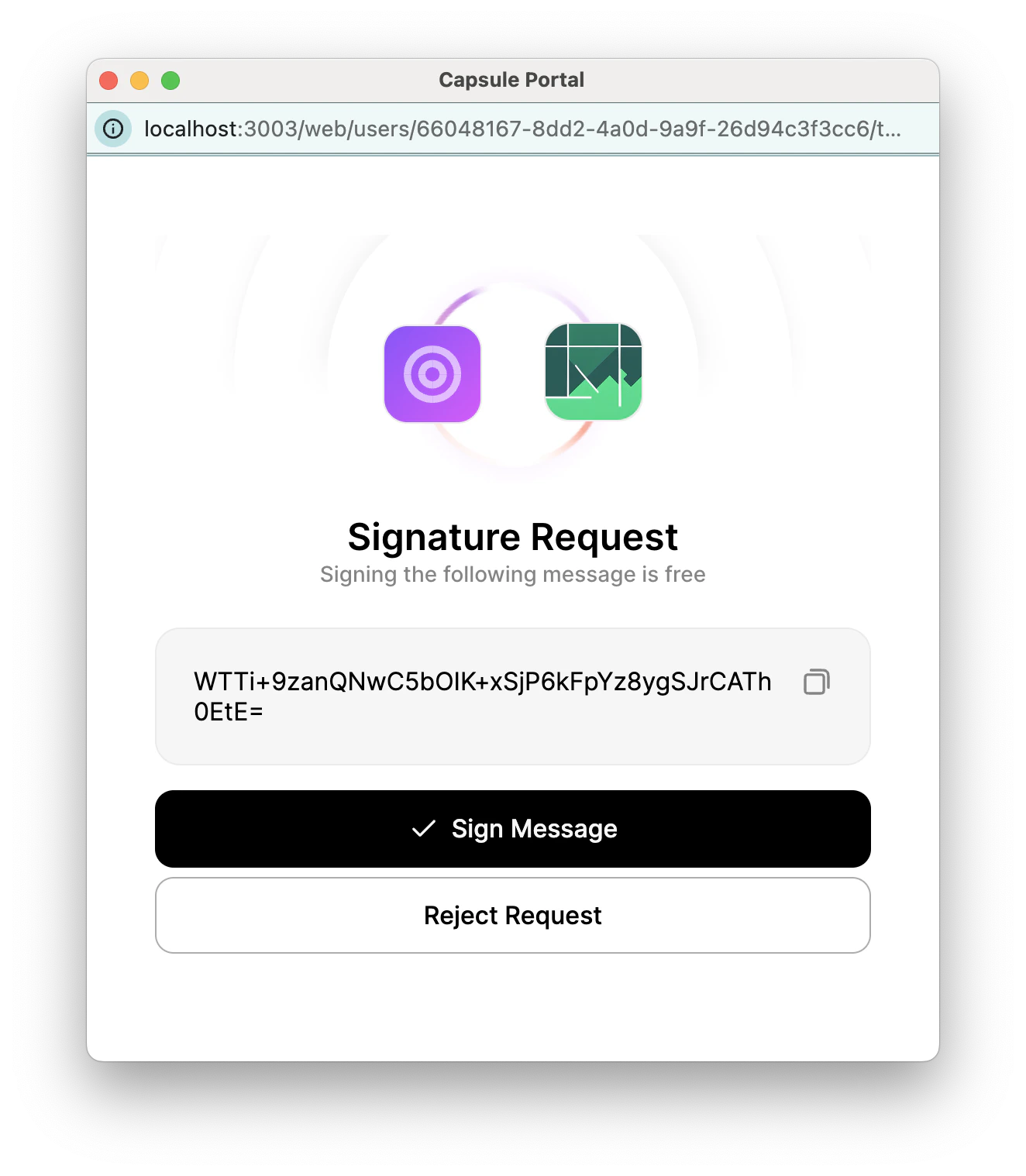
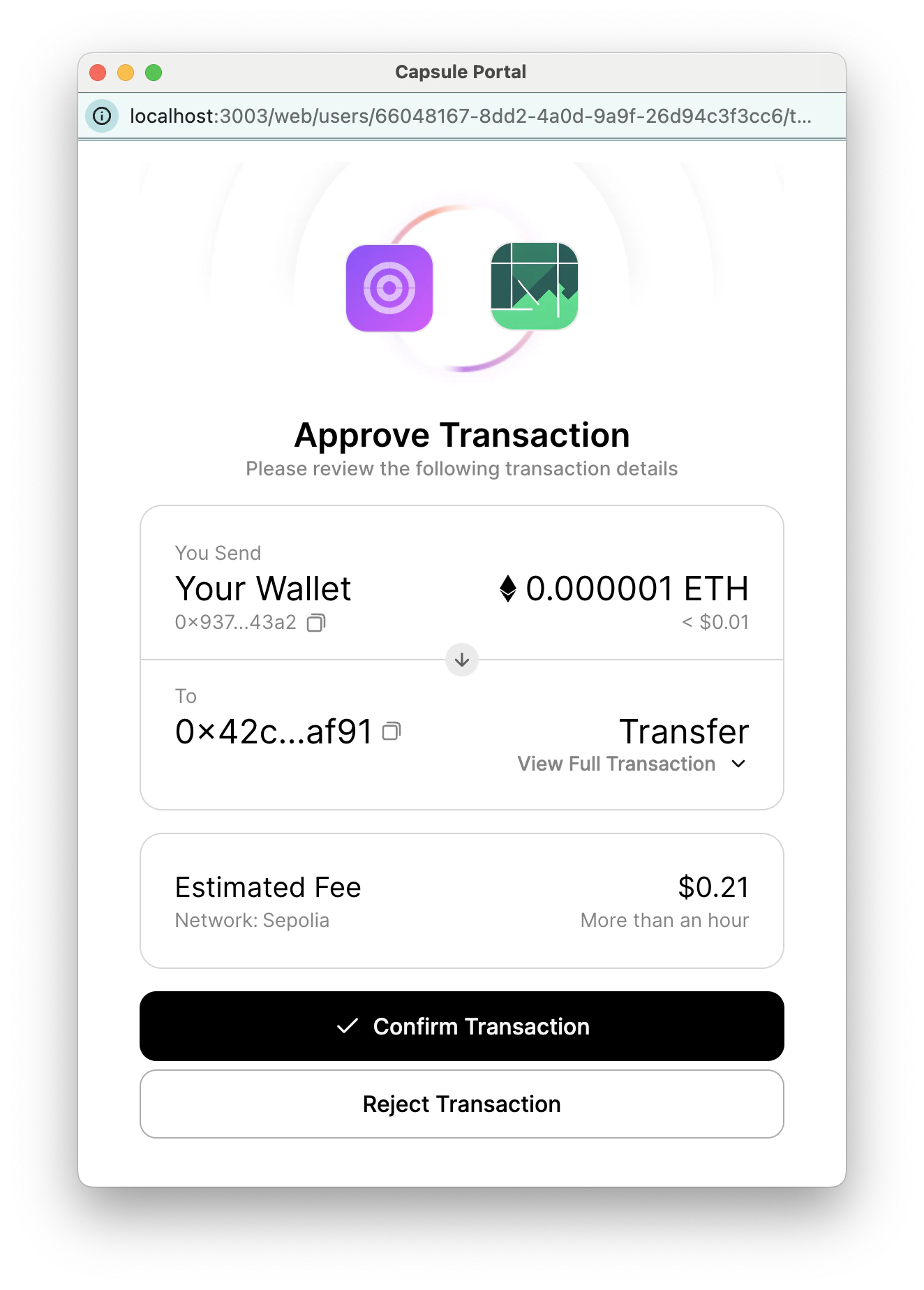
When a transaction or message signing event is initiated, users will see a popup containing the following details:
* **Message Details**: An encoded string representing the message.
* **Transaction Details**:
* `From`: The wallet address initiating the transaction.
* `To`: The recipient wallet address.
* `Amount`: The number of tokens being transferred.
* `Action`: The specific action being performed (e.g., token transfer, minting an NFT).
* `Conversion Rates`: Relevant exchange rates if applicable.
* `Chain Information`: Information about the blockchain being used.
## Technical Details
This feature is enabled by default when using the `signMessage` or `signTransaction` functions, either directly or
through supported signer libraries (e.g., Ethers, Cosmos).
There is a default 30-second timeout for approvals. If this does not work for your use case, please reach out to the
Para team for instructions on overriding this value.
If your API key has a `WINDOWED_SPEND_LIMIT` policy, under-window direct native and ERC-20 transfer transactions sign automatically when the rest of the policy matches. Over-window transactions return `POLICY_DENIED` before signing and do not create a transaction review.
### Transaction Events and Statuses
* **On Approval**: If the user approves the transaction or no approval is necessary, the `signMessage/signTransaction`
function will return a `SuccessfulSignatureRes` result, which will contain the signature.
* **On Denial or Timeout**: If the user denies the transaction or the timeout is reached, a `TransactionReviewError`
will be thrown that includes the `transactionReviewUrl` that must be handled by the implementing application.
## Error Handling
When implementing permission prompts, various errors can arise during the signing process. It's important to handle
these errors gracefully to ensure a smooth user experience. Below are common scenarios and recommended handling
strategies:
### 1. Transaction Denied
**Description**: The user denies the transaction or message signing request.
**Error Handling**:
```tsx theme={null}
try {
await client.sendTokens(...);
} catch (error) {
if (error instanceof TransactionReviewDenied) {
console.warn("The transaction was denied by the user.");
}
}
```
### 2. Timeout Reached
**Description**: The user does not respond to the popup within the configured timeout period. This returns additional
properties of `transactionReviewUrl` and `pendingTransactionId`:
* `pendingTransactionId` - Can be used in conjunction with the `getPendingTransaction` function available via the
CorePara class (or WebPara, by extension). If it does not exist, that means the user has denied the transaction
request.
* `transactionReviewUrl` - Can be used to open a popup if desired, which will present the user with the sign message /
transaction popup.
**Error Handling**:
```tsx theme={null}
try {
await client.sendTokens(...);
} catch (error) {
if (error instanceof TransactionReviewTimeout) {
console.warn("The transaction timed out. You can retry or direct the user to review.");
}
}
```
## Next Steps
To learn more about signing messages and transactions, check out the following guides:
 * **Transaction Details**:
* `From`: The wallet address initiating the transaction.
* `To`: The recipient wallet address.
* `Amount`: The number of tokens being transferred.
* `Action`: The specific action being performed (e.g., token transfer, minting an NFT).
* `Conversion Rates`: Relevant exchange rates if applicable.
* `Chain Information`: Information about the blockchain being used.
* **Transaction Details**:
* `From`: The wallet address initiating the transaction.
* `To`: The recipient wallet address.
* `Amount`: The number of tokens being transferred.
* `Action`: The specific action being performed (e.g., token transfer, minting an NFT).
* `Conversion Rates`: Relevant exchange rates if applicable.
* `Chain Information`: Information about the blockchain being used.
 ## Technical Details