

setTransactionReviewHandler. The examples call the Para client, and the matching hooks, such as useInitiatedApprovalCases and useCancelApprovalCase, ship in @getpara/react-native-wallet.
Require one or more people to approve a request before Para signs it. This page shows how to add an approval requirement to a policy, give people the right to approve, and follow a case from the request to the signature.
Build and test approvals with a Development key, which uses Para’s beta environment. An approval requirement reaches production with the rest of its policy, through a production review.
How conditional approvals work
A rule witheffect: "require_approval" and an approvalRequirement holds every request it matches. Para opens an approval case for the request, and eligible people approve or reject it. Once enough of them approve, the same request can sign.
Requesters, approvers and configuration managers are Para users with a wallet connected to your app. They act while signed in to your app, or from a Para Portal link that your app opens for them.
Guardrails and Requests can both require approvals. In a Request, an approval rule applies only after the user consents to the policy, the same as its other rules.
Set up an approval requirement
Setup spans the policy, your backend and each wallet the requirement should cover. An authorization scope ties them together: it is an ID you choose, such astreasury, that groups approvers and wallets.
1
Check that conditional approvals are on for your app
Para turns conditional approvals on for each app. Until they are on, saving a policy that has an
approvalRequirement fails with permissions_v2_extension_unavailable. Contact Para if you get that code.2
Add the requirement to a rule
Add Stages run in order, up to five. Each stage sets
effect: "require_approval" and an approvalRequirement to the rule that should pause signing:requiredApprovals, from 1 to 25 or "all", and eligibility, a list of roles or attributes; matching any one entry makes a person eligible. With "all", the stage needs every eligible person, so it works only while at most 25 people are eligible. To add stages for larger amounts, set amountFact on the requirement and a minimumAmount on each later stage.3
Activate the policy
Para accepts assignments only for roles and attributes that an active policy declares, so activate the policy before you assign anyone.
4
Assign approvers and bind wallets
From your backend, give each approver a role or attribute in the scope, then bind every wallet the requirement covers to the same scope. Both calls use the REST SDK and your secret API key:Use
expectedRevision: 0 for the first write. For later changes, read the record and pass its current revision. Approvers must have a wallet connected to your app; assigning a role to anyone else returns 400 with user is not linked to this app.Assignments, wallet bindings and approval settings belong to the environment where you write them. After your policy is published to production, repeat them with your production secret key.
Require approval for Safe payments
When Para wallets own a Safe, Para can read the payment inside a Safe transaction and hold it for approval. Rules read it with the Safe payment facts:request.safe.to for the recipient, request.safe.value.* for a payment in the chain’s native token and request.safe.token.* for an ERC-20 transfer. They apply to two EVM actions: execute_safe_transaction, the execTransaction call that runs a Safe transaction, and sign_typed_data, an owner’s signature over the Safe transaction.
operation 0) that sends the native token or calls transfer or transferFrom on an ERC-20 token, the call does not target the Safe itself, and gasPrice is 0. Keep these rules in mind:
- Native and token payments use separate facts. Write one rule for each, because a rule that reads both fails closed on the one the payment does not use.
- On
execute_safe_transaction,request.value.baseUnitsis only the value attached to the outerexecTransactioncall. Constrain it as well if your owners could attach value. - To add stages for larger Safe payments, set
amountFacttorequest.safe.value.baseUnitsorrequest.safe.token.value.baseUnits. - In a case,
request.safePaymentdescribes the payment withkind(nativeorerc20),safe,to,baseUnitsandasset, plusfrom, the account the tokens are pulled from, for an ERC-20transferFrom. The Portal approval page shows it under Safe payment.
The Para client and server SDKs, including their viem, ethers and wagmi integrations, sign EIP-712 typed data and EIP-7702 authorizations as a message over their hash, so Para evaluates those requests as
sign_message. The sign_typed_data and sign_authorization actions, and the facts Para reads from typed data and authorizations, such as request.typedData.primaryType, apply only to the REST API’s sign-typed-data and sign-authorization routes, which the REST SDK calls.safe.spend.native and safe.spend.erc20, which count spending per Safe across all of its Para owners. Usage reads return Safe meters only when you pass the Safe’s address as safeAddress. The Safe payment facts reference covers every Safe fact and how Safe spend is counted.
Request a signature that needs approval
The user who signs is the initiator. When a Request rule requires approval, the signing call does not fail: Para holds the transaction as a pending transaction, opens a case for it and sends the user to the review page. While approvers decide, that page shows Waiting for required approvals. Refresh after an approver has decided. Its Cancel button only closes the page; to withdraw the request, cancel the case.If the user chose to review each transaction when they consented, they review the transaction first, and the case opens after they approve it. The signing call then throws
TransactionReviewTimeout straight away, so the waiting outcomes below do not apply: follow the case, then continue after approval with resumeApprovalCaseId.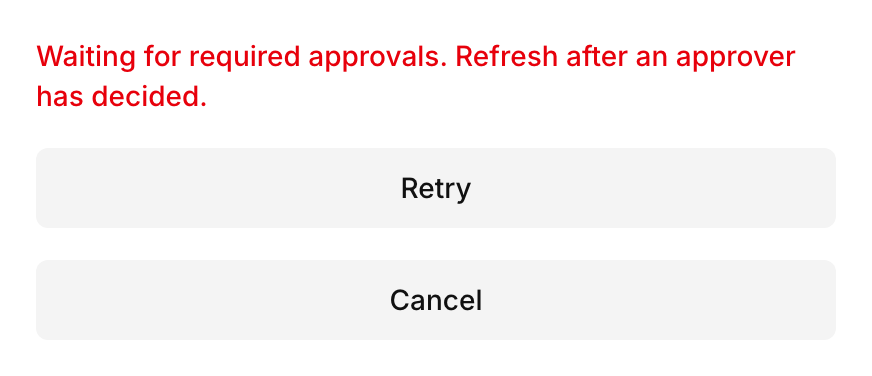
Track the case
The signing call waits only as long as the review window, which lasts at least five minutes. Pass a largertimeoutMs to wait longer. When the window ends, the call throws TransactionReviewTimeout, which carries the pendingTransactionId. Approvals often take longer, so treat the timeout as an expected outcome and follow the case instead.
The case’s request.id is the pending transaction ID. listInitiatedApprovalCases() returns the user’s cases, newest first:
getInitiatedApprovalCase(caseId). The hooks useInitiatedApprovalCases and useInitiatedApprovalCase wrap the same calls.
While the signing call is still waiting, the case decides how it ends:
When the user did not review the transaction first, the approvers’ decision stands once the case completes. If the user selects Reject on the review page after that, Para refuses it with
PENDING_TRANSACTION_ALREADY_APPROVED. To stop a request, cancel the case while it is still pending.
Continue after approval
If the signing call ended before the case completed, sign again and pass the case ID asresumeApprovalCaseId. signMessage takes the same option.
resumeApprovalCaseId, you can rebuild the transaction before you sign again, for example because the wallet’s nonce moved on while approvers decided.
An EVM transaction can change its nonce, gas limit and fees. A Stellar transaction can change its fee, sequence number and signatures, the outer fee of a fee bump, and every precondition: time bounds, ledger bounds, minSeqNum, minSeqAge, minSeqLedgerGap and extraSigners.
Every other field is part of the approval, including maxFeePerBlobGas on an EIP-4844 blob transaction and, on a Soroban transaction, its resource fee, its declared resources and the nonce and signature expiration ledger of each authorization entry. Changing one of them needs a new approval.
A Solana, Cosmos or Sui transaction must be resent unchanged, and any other change returns 409 with request already has a different conditional approval case. Co-signed cases under transaction_signature evidence, and any retry after signing has started, must match the approved request exactly.
Without
resumeApprovalCaseId, Para continues a case only for the identical encoded transaction, and it opens a new case when the earlier one has ended, even after a rejection. Pass the case ID whenever you continue a request, so a rejected request does not reach approvers a second time by accident.
Let approvers decide
Approvers act while signed in to Para through your app. They can decide in your own interface with the SDK, or on a Para Portal page that your app opens for them.Check whether the user can decide
listAccessibleApprovalCases() returns the cases the signed-in user can see, and getAccessibleApprovalCase(caseId) returns one of them. Each case includes a decision object for the current user:
Decide in your interface
Read the case, checkdecision, then record the decision for the signed-in approver:
@getpara/react-native-wallet. Use rejectApprovalCase(caseId) the same way to reject.
Each approval counts once toward its stage. The case completes when every stage that applies has its approvals, and a single rejection from an eligible approver ends it as rejected.
Send approvers to the Para Portal
getApprovalCaseReviewUrl({ caseId }) returns a link to the Portal approval page for the signed-in user. It reads the case first, so it throws for a user who cannot view the case. For the user who made the request, the error’s code is INITIATOR_CANNOT_REVIEW; show them that the request is waiting for approvers instead. The method returns the URL without opening it.
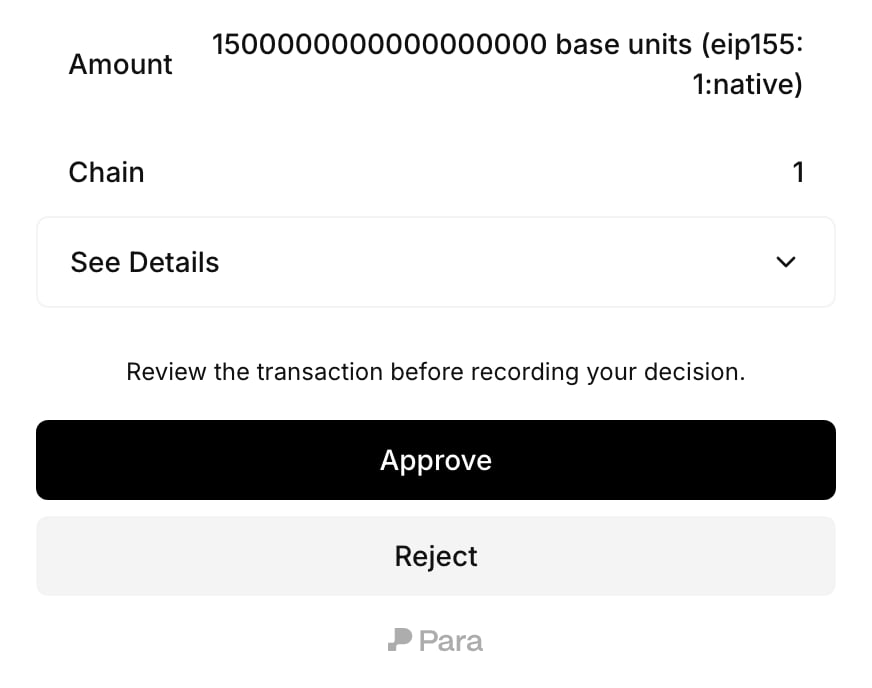
Cases whose requirement uses
evidence: "transaction_signature" collect wallet signatures instead of approvals, and approveApprovalCase refuses them. The approval signatures page in this section covers that flow.Tell approvers about new cases
Para does not notify approvers. Your app decides who hears about a case and how. When approvers open your app,listAccessibleApprovalCases() works as their inbox. To reach them sooner, send the case ID or the Portal link through your own notifications. On your backend, listAuthorizationScopeMembers(scopeId) lists the people who hold assignments in a scope.
Case lifecycle
A case starts aspending and ends in one of five statuses. Approvers read it with getAccessibleApprovalCase, the user who started it reads it with getInitiatedApprovalCase, and your backend reads it with getPartnerApprovalCase.
These rules decide how a case progresses:
- A case lasts seven days from when it opens, until
expiresAt. A completed case can sign only beforeexpiresAt, and only once: signing uses it up. - Stages run in order.
currentStageIndexpoints to the open stage, and each entry instageslistsrequiredApprovals,eligibleActorCountandapprovedActorIds. With"all", the stage needs every person who was eligible when it opened, which works only while at most 25 people are eligible. - Para records who is eligible when each stage opens. Assigning a role later does not add that person to a stage that is already open.
- A person counts once per case. Someone who approved an earlier stage cannot approve a later one.
- The initiator cannot approve or reject their own case. Signature collections are the exception: an eligible initiator can add their own signature.
- When your backend signs with
initiatorUserId, Para leaves that user out of every stage, even if they hold an approver role. decisionslists every vote with its stage and time.
Cancel a pending case
Withdraw a request that is still waiting, for example when the user changes their mind.pending case can be cancelled. The case ends with status cancelled and terminalReason case_cancelled. When a pending transaction from a user’s wallet is waiting on the case, Para discards it, so that request never signs. A request that should still go ahead needs a new attempt, which opens a new case.
Cancelling a case that is no longer pending returns 409 with conditional approval case is not pending. A signing call that is still waiting on the discarded transaction throws TransactionReviewDenied.
Changing a policy with open approvals
Para checks an open case against the current setup whenever the case is read, decided or used to sign. If something the case depends on has changed, the case becomesinvalidated, and terminalReason says why. The common reasons are:
A later stage that would have more than 100 eligible people does not end the case. The approval that completes the stage before it fails with
400 and approval stage resolves to more than 100 eligible people, and the case stays pending until the assignments change or it expires.
Signature collections work differently. A policy change ends a collection only when its own policy version stops applying, for example because it was replaced or turned off, and its terminalReason is then requirement_unavailable.
Confirm changes that affect open cases
An approval case is open while it is
pending, and after it completes until it is used to sign or expires. Para refuses a change that would invalidate open cases until you confirm it. A confirmed change ends those cases as invalidated, and their requests need a new attempt.Through the API, a refused change returns 409 with code APPROVAL_CASES_AFFECTED and the case IDs in affectedCaseIds, and nothing changes. To confirm it, send the same change again with force: true.ParaRestError, and the client SDKs that configuration managers use throw PermissionsV2ApprovalCasesAffectedError. Both carry affectedCaseIds. The check covers replacing, activating and turning off a policy, changing a user’s assignments, moving a wallet to another scope, and saving or resetting adjustable approval settings.
In the Developer Portal and the CLI, you confirm the change when Para asks:
Changes that happen without a write, such as a policy’s time window opening or closing, invalidate cases without asking.