Author and test policies on a Development key, which uses Para’s beta environment. Production keys are read-only in the Developer Portal. Para publishes production policies after a production review.
Open Permissions
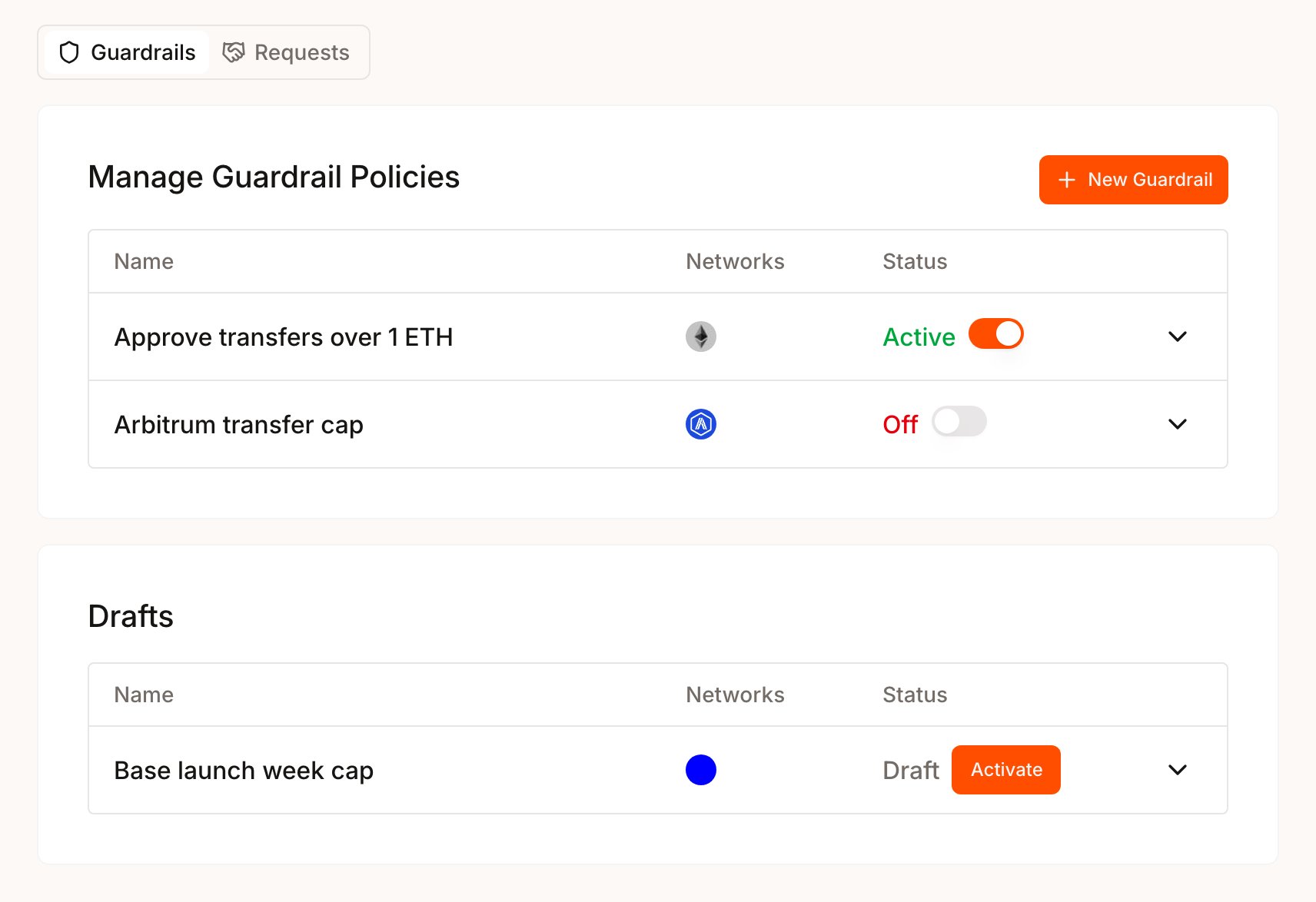
Each API key has its own policies. Select your project, pick a Development key in the key switcher, then open Permissions under Configuration in the sidebar. The page has two tabs, and the tab you start from sets the policy type. There is no separate type picker.
Each row shows its Status:
Active, Expired, Draft or Off. Only active policies inside their time window affect signing. A draft can be activated only while its time window is open. Outside it, selecting Activate shows the error policy record activation window is not active.
Create a policy
A policy is built in three screens: the policy details, the logic and a review. Saving creates a draft, and nothing is enforced until you activate it.1
Start from the right tab
Select Guardrails or Requests. Select Add for your first policy, or New Guardrail or New Request once the tab has policies.
2
Describe the policy and pick networks
Fill in the first screen: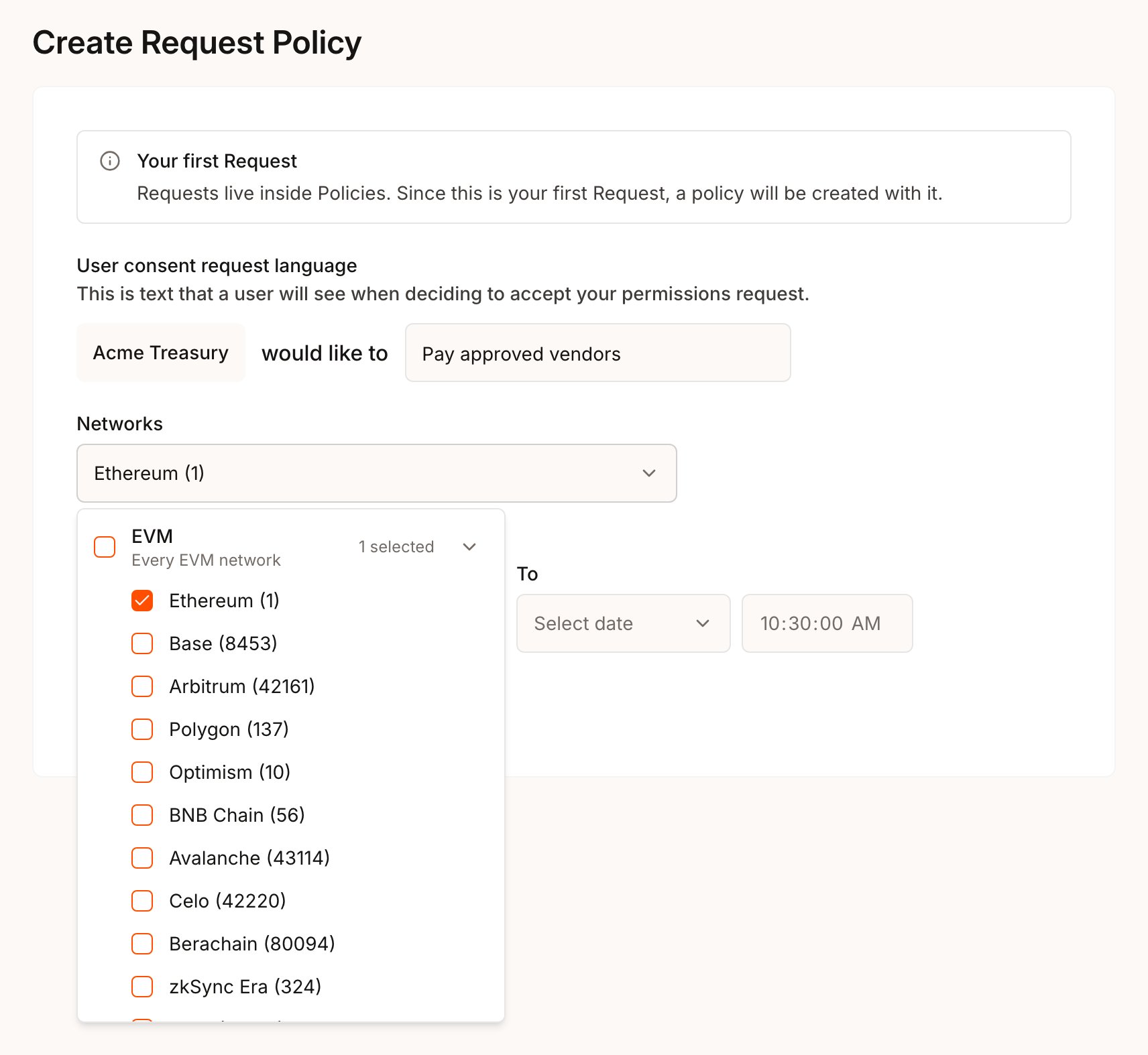
- Guardrail Policy Name names a Guardrail in the list.
- User consent request language is the text users read on the consent screen, after your app’s name and “would like to”. Write it as an action, such as “send up to 0.2 ETH a day”.
- Networks opens a checklist grouped by wallet type: EVM, Solana, Cosmos, Stellar and Sui. Check a group to cover every network of that type, or check individual networks. A policy covers one wallet type.
- Policy Time Window (Optional) limits when the policy applies. Leave From and To empty to apply it as soon as it is active.
3
Add actions and conditions
On the Guardrail Logic or Request Logic step, choose an action under Select Action, fill in its target fields, then select Add Condition to narrow it. Select Add Action to cover another action in the same policy.The two types read conditions differently: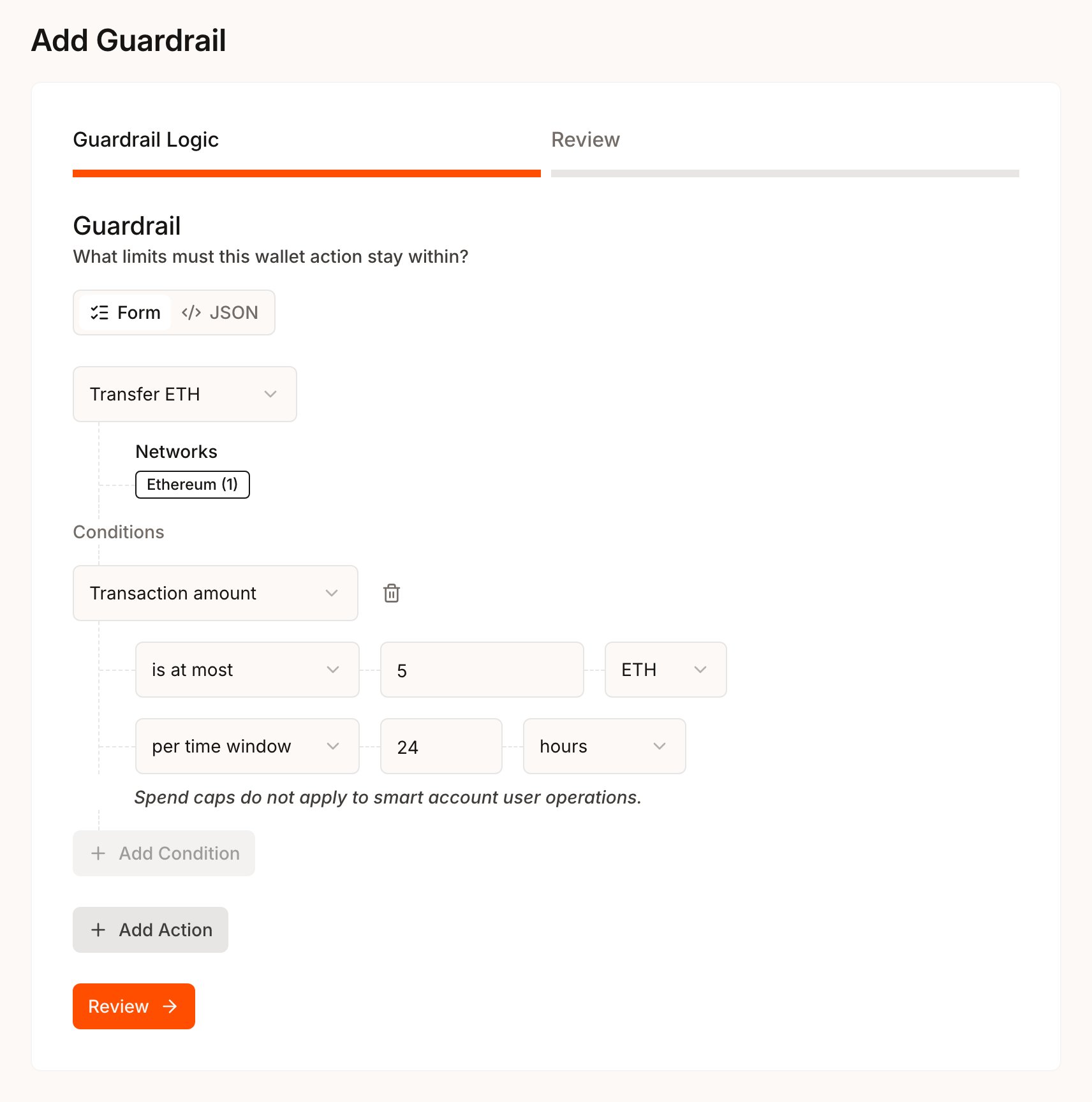
- In a Guardrail, the target and condition describe what that action may do. Para blocks requests of that action outside the boundary. An action with no condition blocks every request of that action outside its target fields. For actions with no target fields, such as Transfer ETH, Deploy a contract and Native transfer, that means every request of that action on the selected networks.
- In a Request, the target and conditions describe what the user grants. All conditions on an action must hold. User consent is always Required.
4
Review and save a draft
Select Review. Para validates the policy and shows the server-normalized version, a warning when no action has a condition, and an Overlaps with active policies list when other active policies cover the same requests. Every overlapping policy applies, and a block in any overlapping Guardrail wins.Select Save Draft when the summary matches your intent.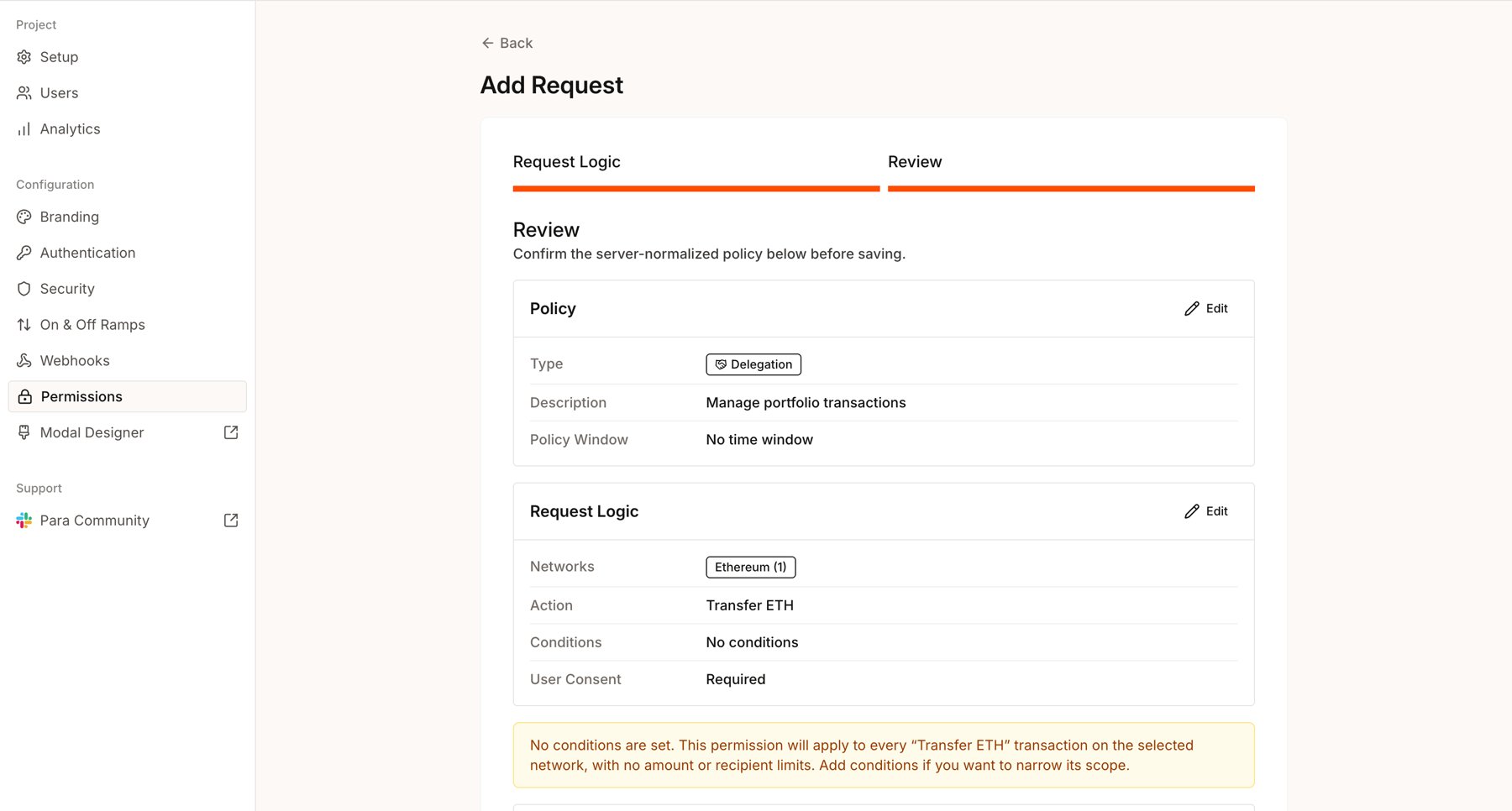
5
Activate
In the list, select Activate on the draft row. The policy now applies to signing on this key, and the first active policy turns Permissions on for the key. Test it before you build on it.
You can keep one draft per policy type. Activate or delete it before you start another.
What the forms support
The forms cover common transfer, contract and Safe policies. The actions available depend on the wallet type of the networks you picked.- EVM
- Solana, Cosmos and Stellar
- Sui
Enter EVM addresses in lowercase. Native amounts accept
ETH or wei. Token amounts use the token’s base units.Execute a Safe transaction takes no conditions in the form. To limit the payment a Safe transaction makes, such as its recipient, amount, asset or Safe spend over a time window, write the rule as JSON with the Safe payment facts.Native limits count positive native value: on EVM from any transaction, contract calls included, and on Solana, Cosmos, Stellar and Sui from native transfers. Token limits count ERC-20
transfer calls on EVM, including ERC-20 transfers sent through Para gas sponsorship, and token transfers on Solana, Cosmos and Stellar. Sui has no token limits. Gas and fees never count. Apart from those sponsored transfers, smart account user operations do not count toward EVM limits. A token limit that names an asset counts only that asset. Each network, asset and window has its own budget, so a limit of 1 ETH per day on Ethereum and Base allows 1 ETH per day on each network. Payments a Safe makes count only toward the Safe limits, safe.spend.native and safe.spend.erc20, which keep one budget per Safe. See Metered facts for the full rules.The forms cannot save message signing, month-based or lifetime spend windows, or optional consent. Policies that target specific wallets or users, combine conditions in other ways, or need adjustable parameters, approval requirements or rules that block or hold raw signatures are written as JSON.
While Permissions is on, raw signatures follow the same defaults as other signing requests: an app-owned wallet signs them, and a user-owned wallet sends them to the user for review. Rules that name the
raw_signature action, and rules with "actions": "all", can change that. Raw signatures are sign-raw requests, messages from Solana, Stellar and Sui wallets, and REST sign-message requests from a Cosmos wallet that do not pass walletType: "EVM". The SDKs sign messages from Cosmos wallets as EVM sign_message requests. Raw signatures carry no network a selector can name, so only a policy without chainId governs them. A rule that names raw_signature can read only para.wallet.* facts. The Developer Portal forms cannot create one, so write it in policy JSON, with Edit JSON in the Developer Portal or with the CLI.Edit, turn off or delete a policy
The networks you pick identify a policy. To edit one, you start a new policy of the same type and pick exactly the same networks. Picking different networks creates a separate policy instead.Turning an
Off policy back on in the Developer Portal does not create the next version. The Portal publishes a copy under a new policy ID, dev-portal-permission-<uuid>, at version 1, activates it and archives the Off record. Update any policy ID your app stores, such as for usage reads or consent links, and on a Request, each user has to consent to the copy. The switch is unavailable, with the reason in its tooltip, while a draft of the same type exists, while another policy of the same type is active on the same networks, and once the policy’s time window has ended. Activate or delete that draft, turn off the other policy, or create a new policy with a current window.Changes that affect open approvals
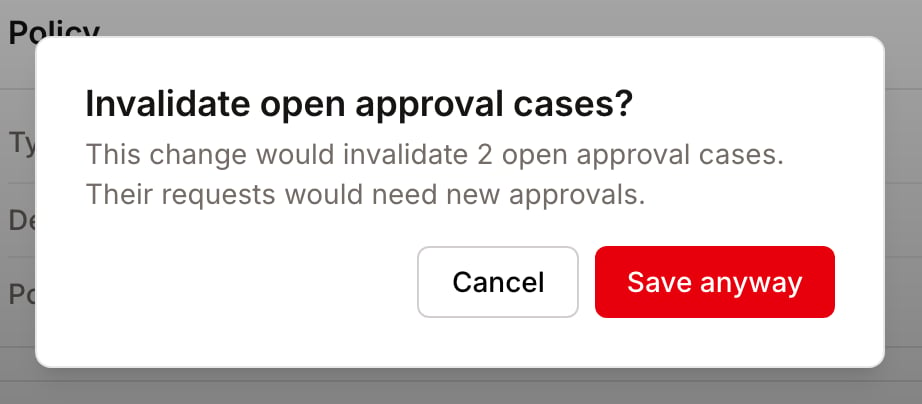
Saving changes, activating a draft, turning a policy off and turning it back on can all invalidate open approval cases. An approval case is open while it ispending, and after it completes until it is used to sign or expires. Para refuses a change that would invalidate open cases until you confirm it. A confirmed change ends those cases as invalidated, and their requests need a new attempt.
The Developer Portal asks in a dialog, Invalidate open approval cases?, which shows how many cases the change affects.
Move to JSON
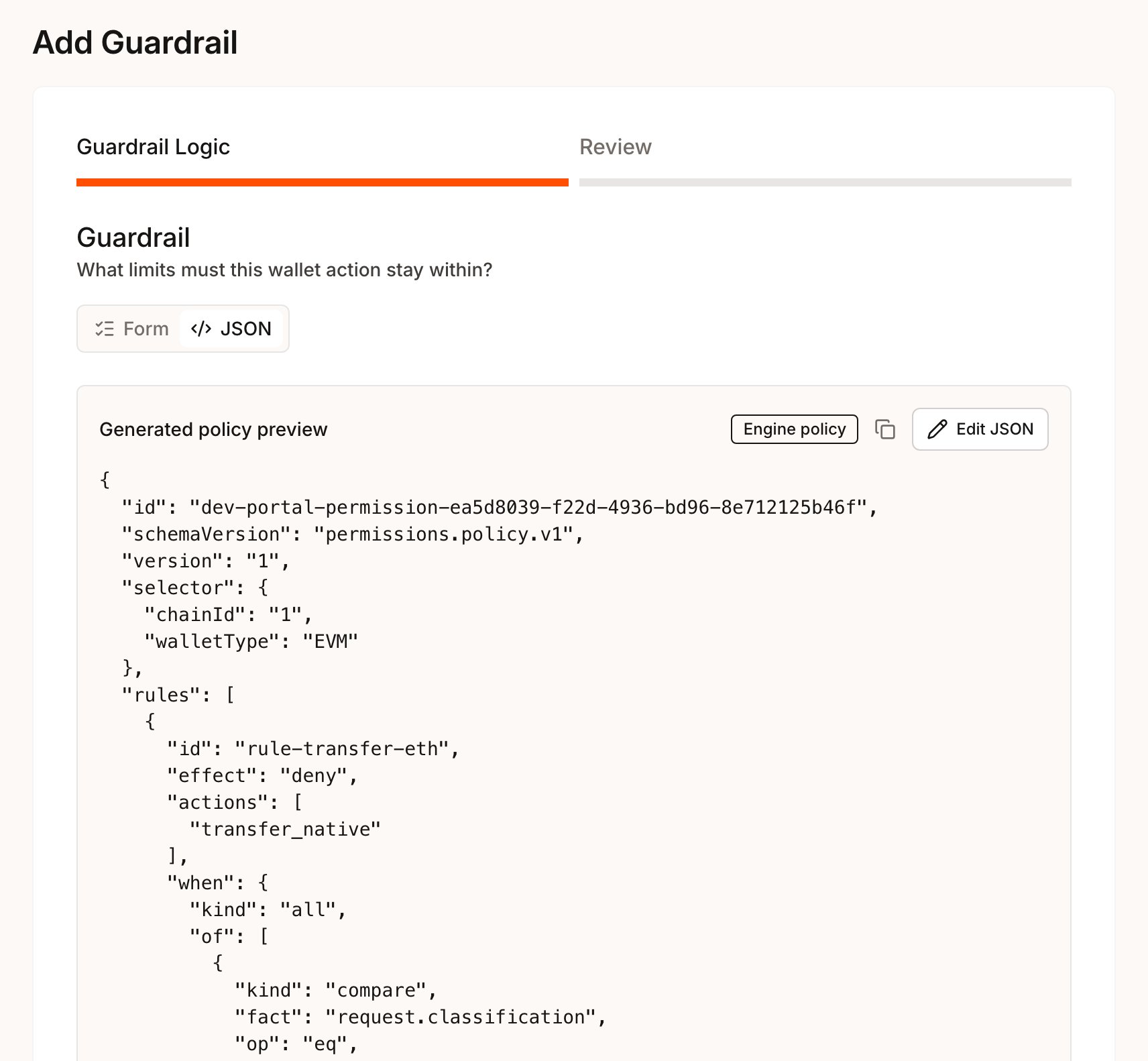
The Guardrail Logic and Request Logic steps have two tabs: Form and JSON. The JSON tab shows the policy your form generates, marked Engine policy when it can be saved or Preview only when it cannot. Select Edit JSON to edit the policy directly. While JSON edits exist, the Form tab is disabled. Discard JSON edits returns you to the form.