

JSON writes from the Portal or the CLI apply to Development keys, which use Para’s beta environment. A policy reaches production through a production review, not by writing to a production key.
When to move to JSON
The forms cover one action pattern at a time. Switch to JSON when a policy needs to:- target specific wallets with
walletId, or specific users withuserIdon a Request; - combine conditions with
all,anyandnot, or use more conditions than the forms allow; - cover actions the forms do not offer, such as token approvals, NFT transfers, message signing or raw signatures;
- read facts the forms do not offer, such as gas fees, the request classification or the Safe payment facts (
request.safe.*andsafe.spend.*), which read the payment inside a Safe transaction; - require approvals with an
approvalRequirement, or let users adjust a limit with aparameter.
The Para client and server SDKs, including their viem, ethers and wagmi integrations, sign EIP-712 typed data and EIP-7702 authorizations as a message over their hash, so Para evaluates those requests as
sign_message. The sign_typed_data and sign_authorization actions, and the facts Para reads from typed data and authorizations, such as request.typedData.primaryType, apply only to the REST API’s sign-typed-data and sign-authorization routes, which the REST SDK calls.Edit JSON in the Developer Portal
The JSON editor lives on the logic step of the normal Portal flow, so you start from the tab, networks and time window you chose on the first screen. The time window is set there and is not part of the JSON.1
Start the policy
On the Guardrails or Requests tab, select Add, New Guardrail or New Request. Fill in the name or consent text, pick networks and select Continue.
2
Open the editor
On the Guardrail Logic or Request Logic step, open the JSON tab and select Edit JSON. The editor loads the policy your form generates. If the form cannot generate one yet, it loads a starter with
id, schemaVersion, version, a selector built from your networks, empty rules and metadata.3
Edit or paste the policy
Edit the Policy JSON field, or paste a complete policy over it. While JSON edits exist, the Form tab is disabled. Select Discard JSON edits to drop them and return to the form.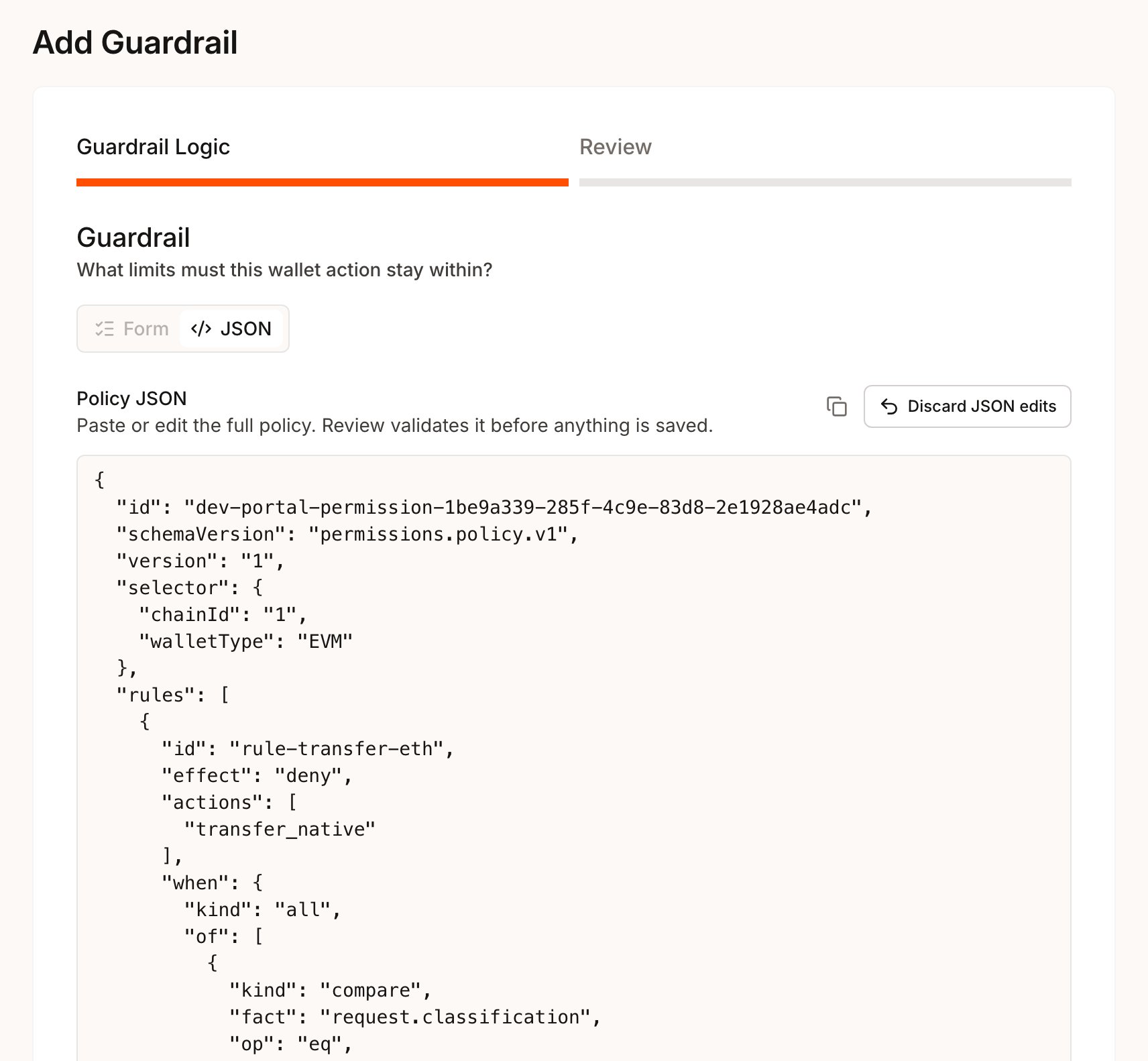
4
Review
Select Review. The Portal checks the JSON locally, then Para validates the policy. Errors appear under The draft needs attention, most with the JSON path they apply to, such as 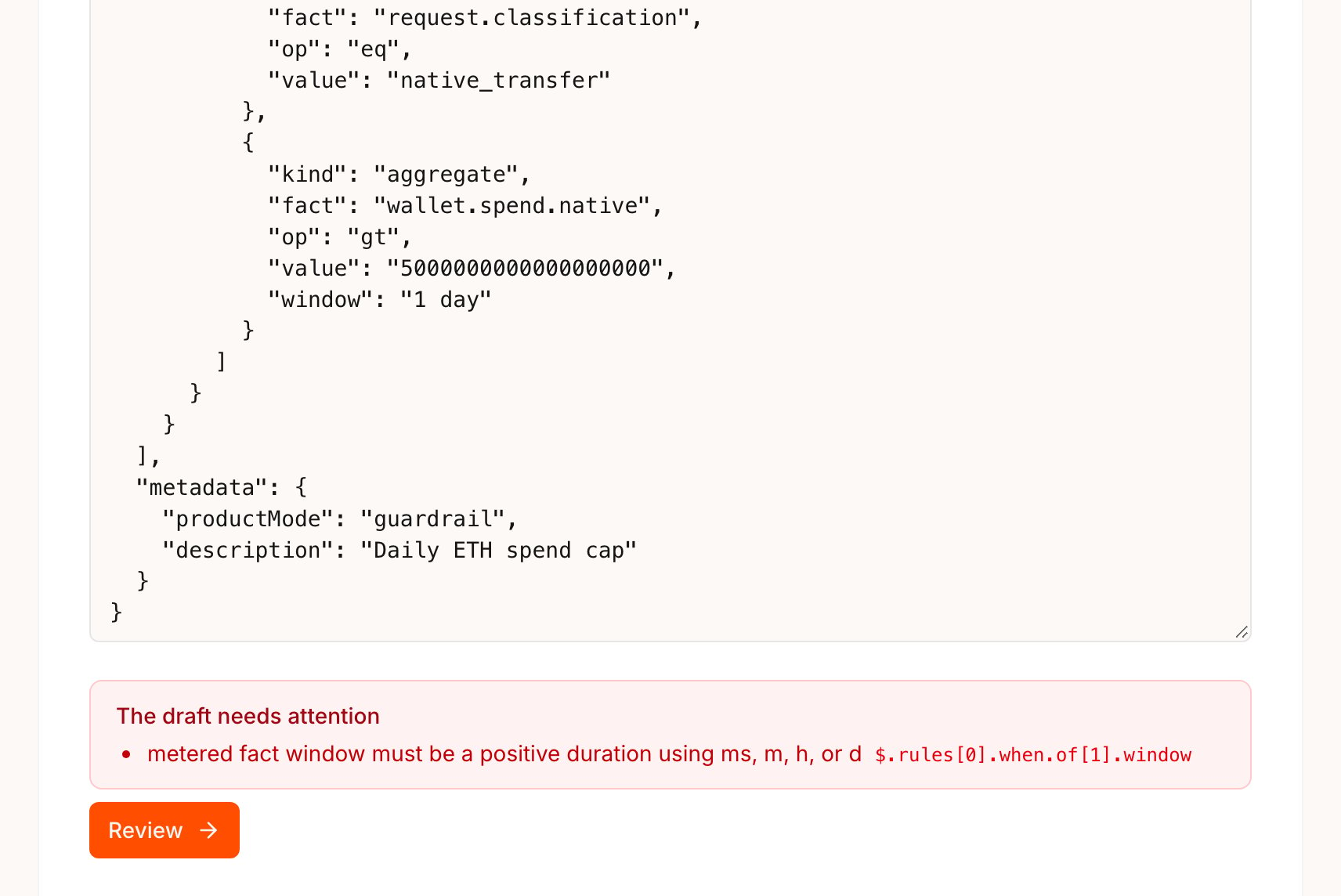
$.rules[0].when. A valid policy moves to the Review step in its normalized form.5
Save and activate
For a new policy, select Save Draft, then select Activate on the draft row. When you edit an active policy, Save changes replaces it with the next version at once, so there is no draft to activate. If saving or activating would invalidate open approval cases, the Portal asks first, the same way it does for form edits. Nothing in the policy JSON controls this.
When you edit an existing policy, the editor loads it with the next
version already set. Keep id, selector and metadata.productMode unchanged, because Para rejects an edit that changes them. A different selector is a separate policy.Submit JSON with the CLI
The CLI suits policies you keep in source control or apply from scripts. Writes are limited to beta keys, so pass--environment beta.
validate prints one line per error with its path, message and code, and exits with code 10 when the policy is invalid. create saves a draft and prints its record ID together with the matching activate command.
replace, activate and deactivate check whether the change would invalidate open approval cases. In a terminal, the CLI asks before it applies such a change, and with --yes it stops with exit code 10, as the policy lifecycle page in this section describes. Add --force to apply the change and invalidate those cases.
The shape of a policy
Every policy is one JSON object with the same top-level fields. Rules hold the logic, and the selector decides which wallets the policy covers.
Each rule’s
effect says what happens when its condition matches. When several rules match one request, the strongest effect wins: deny, then require_approval, then allow.
A
when condition is a compare on one fact, an aggregate that meters spend over a window such as "24h" or "1d", or a group: all, any or not. These two examples cover native transfers on Sepolia.
- Guardrail
- Request
This Guardrail blocks native transfers to anyone outside two known addresses, and blocks any transfer that would take the wallet’s spend above 1 ETH in a day.
ops-wallet-transfers.json
"1000000000000000000" wei. A JSON number fails validation. The in operator takes an array of values.
"actions": "all" covers every action of the wallet type, raw_signature included, but the validation fact check leaves raw_signature out. An "all" rule can therefore read only request.classification, the para.wallet.* facts and, on Solana, Cosmos, Stellar and Sui, request.actionFamilies. A raw signature has no request.actionFamilies, so a condition on it is indeterminate on a raw signature unless another condition in its group settles it, and Para then denies the raw signature unless another matching rule has the same or a stronger effect. See Facts Para cannot read.An "all" rule that reads any other request fact fails validation with fact_action_unsupported, because some actions, such as message signing, provide only request.classification. List the actions the rule needs instead.Approval requirements and adjustable parameters are enabled per key. Until Para enables them for your key, validating, saving or activating a policy that uses them returns the field error
permissions_v2_extension_unavailable.