

Allowed Origins
List the domains allowed to make requests to your Para project. By default all domains are allowed. Add the domains of the web apps where you integrate Para. Allowed Origins apply to web integrations only, not server or mobile.Sign-in methods (email, phone, social logins, and custom providers) are configured on the Authentication page, not here.
Login Two-Factor Authentication
Ask users for a second step when they sign in. Set it on the Security page:- Off: users are never asked for a second factor.
- Optional: users can enroll a second factor, and once they do it’s required at every sign-in.
- Required: every user enrolls a second factor at their next sign-in.
A second factor a user has already enrolled is always required for that user, whatever this setting says.
International Phone Delivery
Choose how one-time codes reach phone numbers outside the US and Canada. Numbers in the US and Canada always get SMS at no additional cost.- WhatsApp (recommended default): free, and the recipient needs WhatsApp installed.
- SMS: a paid add-on, billed per message as a pass-through.
Session Management
Control how long users stay authenticated before requiring re-authentication.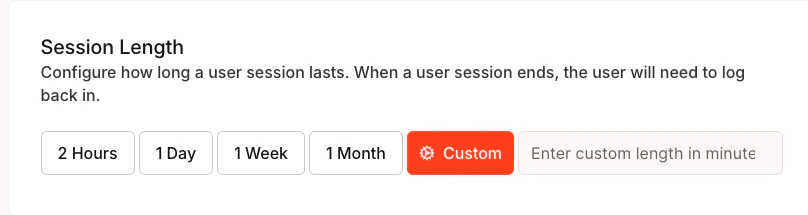
Security Considerations
Shorter Sessions (2 Hours - 1 Day):- Enhanced security for sensitive applications
- Reduced risk if device is compromised
- Better for shared or public devices
- Improved user experience with fewer logins
- Better for personal devices and trusted environments
- Consider implementing automatic session refresh
Custom Session Length
For custom durations:- Select “Custom” option
- Enter duration in minutes
- Consider your application’s specific security needs
- Balance security with user experience
After configuring session length, continue to the Manage Sessions section for the SDK path you are using.
Transaction Permissions
Configure how users confirm transactions and manage permissions.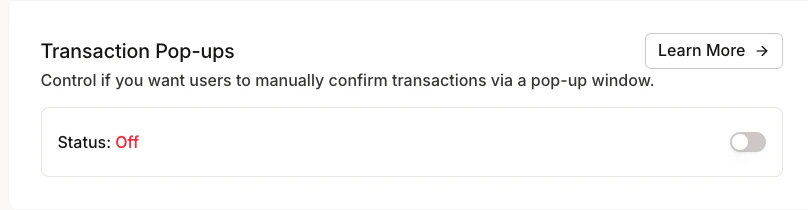
Transaction Pop-ups
Control whether users see confirmation dialogs for transactions:- Enabled: Users manually confirm each transaction via popup
- Disabled: Transactions proceed without additional confirmation
SDK Telemetry
Para’s JavaScript SDKs (web, React and React Native) send OpenTelemetry traces to Para. We use them to find and fix errors and slow sign-ins. Para collects them from a sample of sessions, and sets the sample rate. Telemetry includes:- SDK operations: how long steps such as sign-in, wallet creation and signing take, and whether they succeed
- Requests to Para’s API (web only): one span per request, with the query string removed. Requests your app makes to other services, such as your backend or RPC nodes, are not traced.
- Context: the Para user ID, a random session ID, and which screen of the Para modal is open
Opt Out
To stop collecting SDK telemetry for an API key:- Open the API key and go to Security.
- Under SDK Telemetry, turn on Opt out.
- Save your changes.
For production API keys, opting out requires the Starter plan or above. Beta keys can opt out on any plan.