

Declare both kinds in the policy JSON, test them with a Development key on Para’s beta environment, and publish the policy to production through a production review. Values that users and managers save belong to the environment where they save them.
Personal limits
A personal limit lets each user pick their own value for an amount in a Request, such as a daily spending cap. Your policy supplies the default, and Para applies the user’s value only to that user’s requests. Personal limits must be turned on for your app. Until they are, saving a policy with aparameter fails with permissions_v2_extension_unavailable. Contact Para if you get that code.
Declare a parameter
Addparameter: { id, label } to a compare or aggregate condition. The condition’s value becomes the default.
compareconditions can userequest.value.baseUnitsorrequest.token.value.baseUnits.aggregateconditions can use any metered spend fact, such aswallet.spend.nativeorsafe.spend.native.allowrules useltorlte.require_approvalrules usegtorgte.- A parameter cannot sit inside
not, and eachidmust be unique in the policy. - Values are amounts in base units, written as integer strings without leading zeros.
parameter, but no user can change it, so Para always enforces the default.
How users set their limits
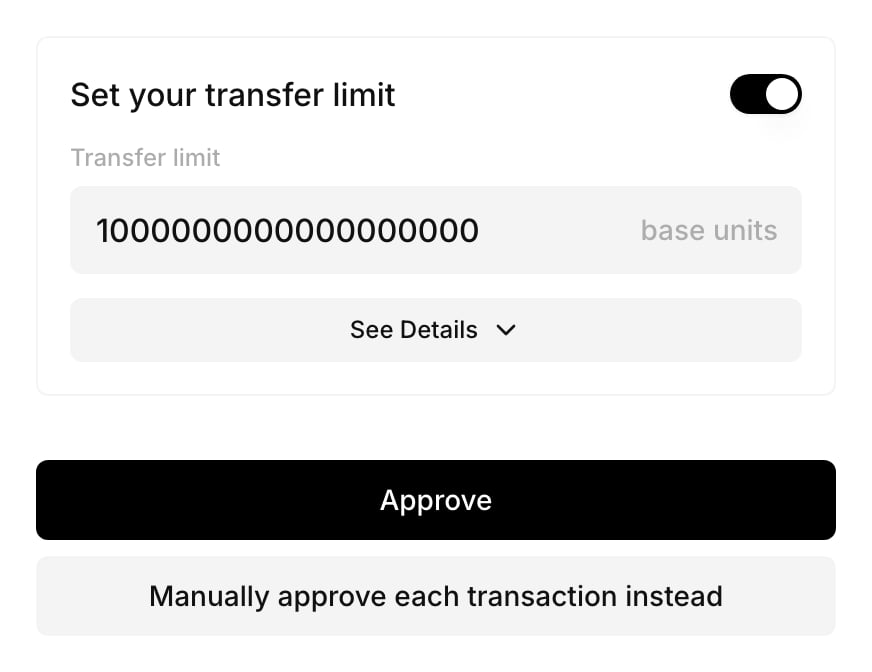
The Portal consent screen shows an input for each parameter, labelled with the parameter’slabel, with the default as its placeholder and a base units suffix. Values the user enters there are saved with their consent.
Read and update limits from the SDK
getUserPolicyParameters(policyId) returns the user’s current values together with the parameters the policy declares. Pass its policyVersion, policyHash and revision back when you save:
The two mutation hooks take
{ policyId, body }. A reset body has the same fields as a save, without values.
How saved values behave:
- Each save replaces the user’s values. A parameter you leave out of
valuesfalls back to the default, so send every value the user wants to keep. Unknown IDs are rejected. - Saving sets
provenancetopersonal, and a reset sets it todefault. Each save or reset adds a revision, except one that changes neither the values nor theprovenance, such as saving the same values again. A staleexpectedRevisionreturns409withuser parameter revision changed; reload settings. - Consent covers the exact values. After a save or reset, the user consents again before the policy applies to them, for example through
getPolicyConsentUrl({ walletId, policyId }). - When you publish a new version of the policy, the view returns
status: "needs_confirmation"with the old values inpreviousValues. Until the user saves or resets for the new version, Para leaves the policy out for that user and fails closed.
listUserAdjustablePolicies(userId), getUserPolicyParameters(userId, policyId) and listUserPolicyParameterHistory(userId, policyId).
Adjustable approval settings
Adjustable approval settings let your organization change parts of an approval requirement without publishing a new policy version. The policy declares which settings can change and within what limits. In policy JSON they are calledsafeKnobs.
Declare the settings
AddsafeKnobs to the approvalRequirement. To let people other than your backend change them, add configurationManagerEligibility:
A stage can have one participation setting (
required_approvals or eligible_group) and one minimum_amount.
Without max, a minimum_amount setting can only lower the stage’s threshold, because max defaults to the published minimumAmount. Set max to let people raise it, and min to stop them lowering it too far.
Read and update settings
Settings apply per authorization scope and per requirement in an active policy version. Every call identifies them with a reference:getEffectiveApprovalConfiguration returns the saved configuration, or null before the first save, together with the effectiveRequirement that Para applies.
In React,
useEffectiveApprovalConfiguration, useUpdateApprovalConfiguration (variables { reference, body }), useResetApprovalConfiguration (variables { reference, expectedRevision, force }), useApprovalConfigurationHistory and useUserApprovalCapabilities wrap the same calls.
How saved settings behave:
- A save replaces all values for the requirement in that scope. A setting you leave out returns to its published value.
- An unknown ID fails with
safe_knob_not_declared, and a value of the wrong type or out of range fails withsafe_knob_value_invalid. - A stale
expectedRevisionreturns409. From the SDK this arrives as a plain request error, so read the configuration again after any failed write before you retry. - Saving or resetting invalidates open cases for the requirement in that scope, with
terminalReason: "requirement_configuration_changed". - Settings belong to one policy version. After you publish a new version, its requirement starts from the published values, so save the settings again for the new version.
An approval case is open while it is
pending, and after it completes until it is used to sign or expires. Para refuses a change that would invalidate open cases until you confirm it. A confirmed change ends those cases as invalidated, and their requests need a new attempt.Through the API, a refused change returns 409 with code APPROVAL_CASES_AFFECTED and the case IDs in affectedCaseIds, and nothing changes. To confirm it, send the same change again with force: true.The SDK throws PermissionsV2ApprovalCasesAffectedError, and the REST SDK throws a ParaRestError.