

Policy changes happen on a Development key, in Para’s beta environment. Production keys are read-only: a policy reaches production only through a production review, and later changes on beta do not update production until Para reviews them again.
Policy IDs, versions and records
Three identifiers describe a policy. What users and approvers save follows the policy ID and version, while lifecycle commands act on a record.
Each record has a status. The Developer Portal shows the current version of each policy with its own labels:
Lifecycle operations
The Developer Portal and the CLI run the same operations on the same records.
Turning an
Off policy back on in the Developer Portal does not create the next version. The Portal publishes a copy under a new policy ID, dev-portal-permission-<uuid>, at version 1, activates it and archives the Off record. Update any policy ID your app stores, such as for usage reads or consent links, and on a Request, each user has to consent to the copy. The switch is unavailable, with the reason in its tooltip, while a draft of the same type exists, while another policy of the same type is active on the same networks, and once the policy’s time window has ended. Activate or delete that draft, turn off the other policy, or create a new policy with a current window.
An edit keeps the policy ID, the exact selector and the product mode, and uses the next version. A different selector makes a separate policy, so in the Portal, changing the networks while editing saves a new draft instead of a new version.
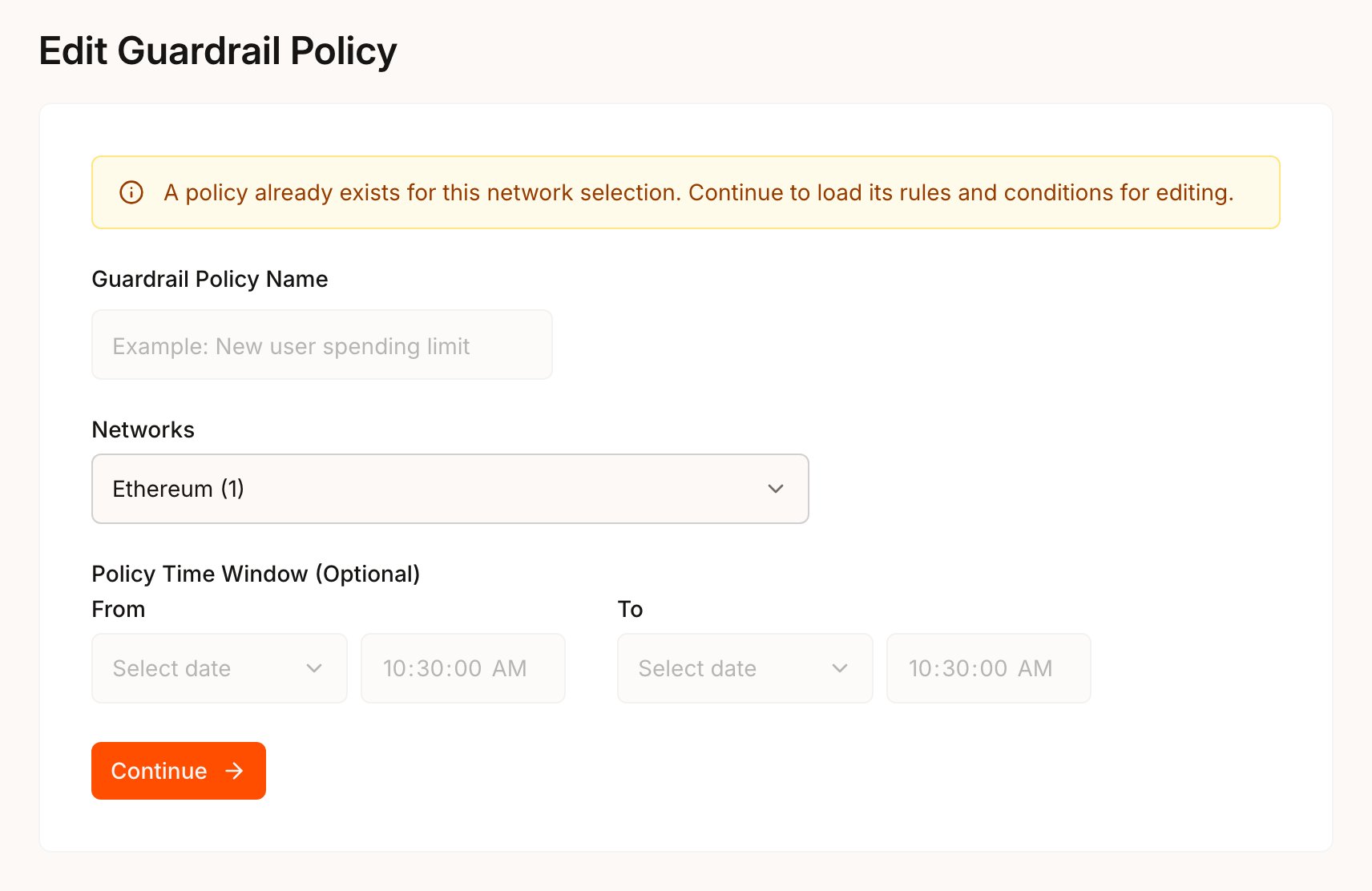
The Portal has no Edit button on a row. Start New Guardrail or New Request and pick the same networks as the policy you want to change. The title becomes Edit Guardrail Policy or Edit Request Policy, and a notice reads A policy already exists for this network selection. Continue to load its rules and conditions for editing.
Confirm changes that affect open approvals
Replacing, activating or turning off a policy can invalidate open approval cases. An approval case is open while it ispending, and after it completes until it is used to sign or expires. Para refuses a change that would invalidate open cases until you confirm it. A confirmed change ends those cases as invalidated, and their requests need a new attempt.
Time windows
A time window limits when an active policy applies. It is not part of the policy JSON: set it under Policy Time Window (Optional) with From and To in the Portal, or with--effective-from and --effective-until in the CLI.
- Times are UTC, and the window includes both ends. The end must be later than the start.
- A future start date leaves the policy a draft until someone activates it at or after that time. Activating it earlier, or after its window has ended, fails with
policy_record_activation_window_inactive, so to start a policy at a set time, run the activation then, for example from a scheduled CI job. - An active policy shows as Expired once its window ends, and it no longer applies to signing.
- An edit keeps the current window unless you set a new one. Editing an active policy needs both the current and the new window to be open, so to change an expired policy, create the next version with a current window and activate it.
window on an aggregate condition, which sets the period a spending limit measures.
How changes affect users and approvals
A new version is a new definition. Anything bound to the previous version has to catch up:
Before you confirm, look up the cases from your backend with
getPartnerApprovalCase for each ID in the CLI’s details.affectedCaseIds, and let them finish if you can.
Run lifecycle changes from CI
The CLI runs without prompts in CI. Pin the environment, pass the key ID, add--json to read results and --yes to the commands that confirm:
replace, activate, deactivate and archive require --yes when you pass --json. Writes work only with beta keys. A change that would invalidate open approval cases fails with exit code 10 in CI, so add --force only to steps that are meant to invalidate them.
When the new version behaves as intended on beta, follow the production steps for your platform to publish it. Production does not pick up beta changes on its own.